From Concept to Finished Exhibit in Minutes
Conceptual plans, zoning exhibits and master site plans don't have to take a long time. A recipe is just a saved style or look based on your AutoCAD layers. Save one, and in a few minutes a CAD export becomes a finished sheet.
Watch It Start to Finish
A 4-minute walkthrough, from opening the export to the PDF, using a recipe saved beforehand.
From Export to Exhibit
This is one way AutoStyle Pro can be used on residential projects: a land plan can quickly reflect different products.
1. Open the CAD export
Blocks named for a species map themselves, and the matches can be kept as mapping rules for the next drawing.
2. Apply one recipe
A recipe is just a saved style or look based on your AutoCAD layers. One recipe styles the whole drawing.
3. Set the land uses
Fence every lot a line crosses, window every lot wholly inside, or point at one lot. Replace fixes a lot that was set wrongly.
4. Let the Site Key count
96, 3 and 2 lots add up to all 101, and the Site Key counts them for you.
5. Tune the look
Shade edge, shadow length, time of day and date all update live on the sheet. Seven view modes restyle it with one setting.
6. Export the sheet
Save the drawing and export the finished sheet as a PDF.
One Drawing, Six Looks
This is real output at full size: 7200 x 10800 pixels, the same sheet exported in each look. Zoom in as far as you like.
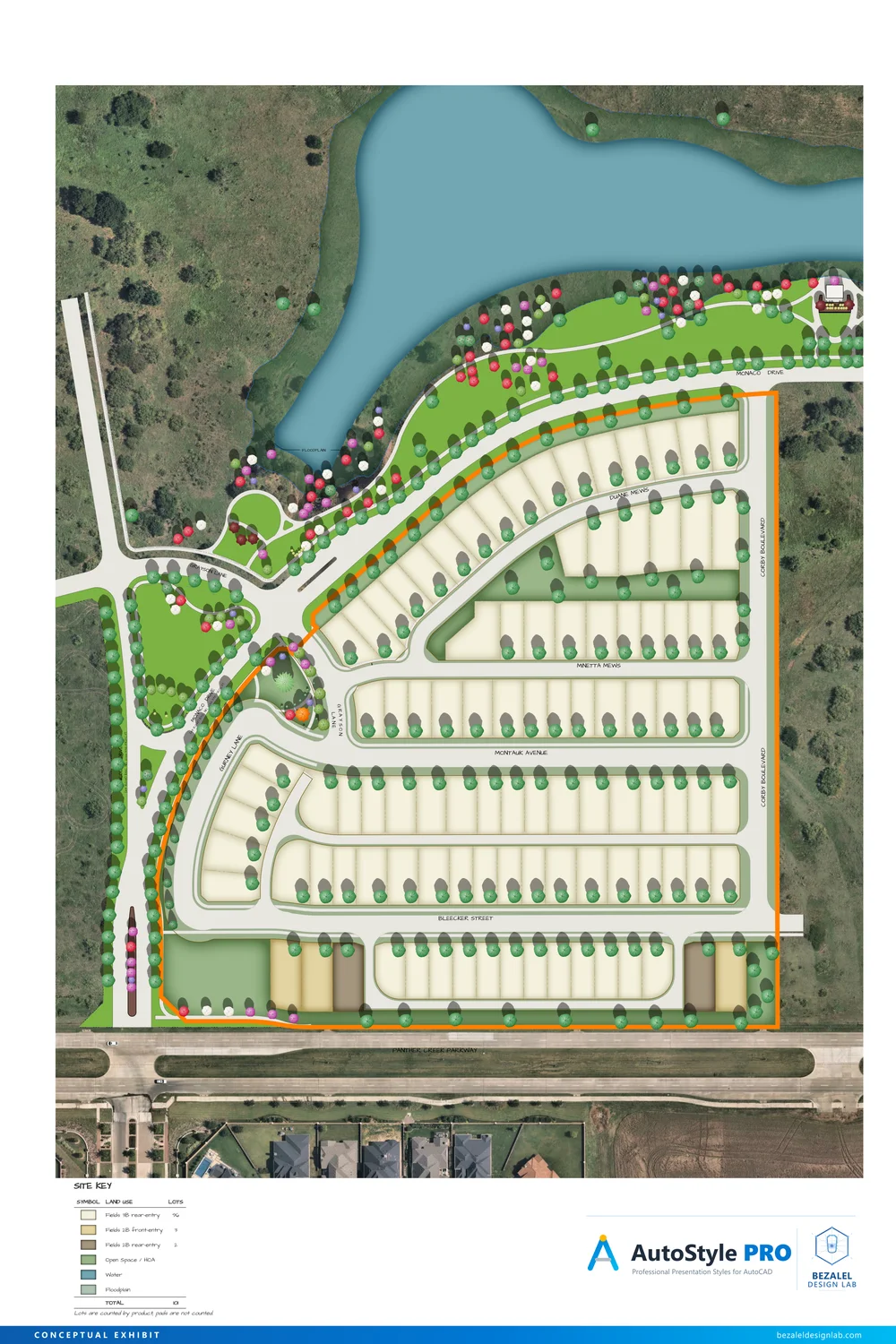
Click the sheet, then scroll to zoom. Drag to move around. On a phone or tablet, pinch to zoom.
Try It Yourself
Follow the video with the same files, from the first step to the finished sheet.
The example files are available to anyone with a free account. Sign in or create one to see them here.
Render Your Next Sheet in AutoStyle Pro
Try AutoStyle Pro free for 7 days. Full features, no watermark, no credit card required.