HydraLink
Desktop Hydrology & Hydraulics Modeling
HydraLink is a desktop application for stormwater hydrology and hydraulics modeling. It supports complete watershed analysis from rainfall-runoff computation through detention design and hydraulic structure sizing. Built for civil engineers and stormwater designers.
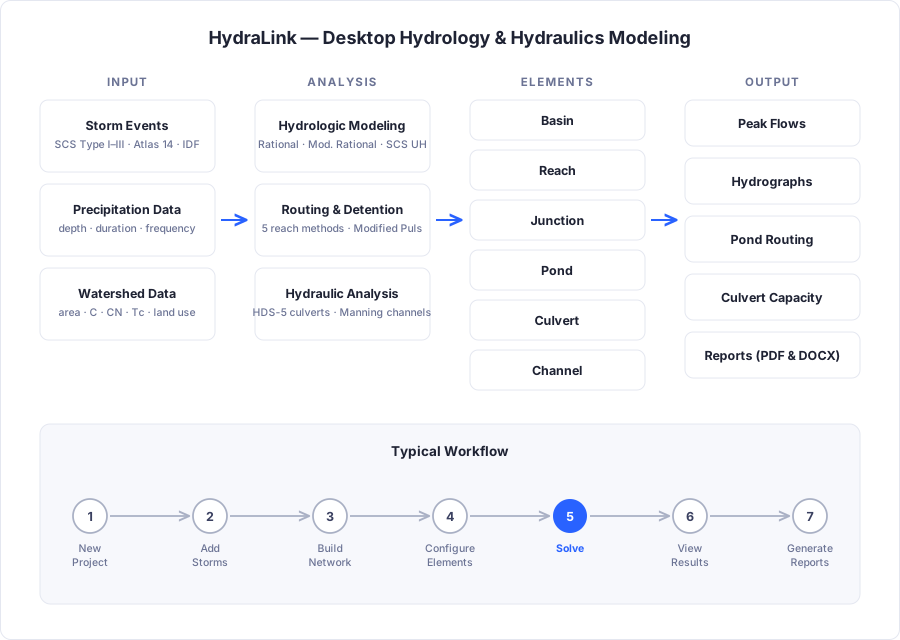
Key Capabilities
Hydrologic Modeling
- Rational Method (Q = CiA) for peak flow estimation
- Modified Rational Method for detention volume sizing
- SCS Unit Hydrograph with adjustable Peak Rate Factor (PRF)
- Multiple loss methods (SCS Curve Number, Green-Ampt)
- TR-55 time of concentration calculator
Hydraulic Analysis
- FHWA HDS-5 culvert analysis (inlet & outlet control)
- Manning’s equation for open channels (4 cross-section shapes)
- Road overtopping analysis
Detention Design
- Modified Rational Method required volume computation (Standard, and Regional IDF tables for North-Central Texas iSWM counties and Georgia cities)
- Modified Puls pond routing with full stage-storage-discharge analysis
- Multiple outlet structures: culverts, orifices, weirs, risers, spillways, restrictor plates
Rainfall & Storm Design
- NOAA Atlas 14 data import
- IDF curve fitting (b, d, e coefficients) from Atlas 14 or user data
- Log-log and linear interpolation of Atlas 14 data
- SCS Type I/IA/II/III distributions
- Frequency Storm (alternating block)
- Custom storm distributions
Hydrograph Routing
- Muskingum-Cunge variable parameter routing
- Modified Puls (storage-indication) routing
- Lag (time translation) routing
- Kinematic Wave routing
- Multiple cross-section shapes (trapezoidal, rectangular, triangular, circular, 8-point)
Project Management & Data
- Plan management for comparing pre/post-development scenarios and design alternatives
- Linked elements shared across plans for efficient multi-scenario analysis
- Civil 3D integration, including a live parcel calculator and two-way model sync (also imports LandXML)
- Import drainage areas from shapefiles, GeoJSON, or LandXML
- Interactive map view with street (light and dark) and USGS aerial basemaps
- Underground detention chamber storage (manufacturer library)
- PDF, DOCX, and Excel report generation
Civil 3D Integration
- Live Rational Method calculator running directly on Civil 3D parcels
- One-save handoff to HydraLink desktop, with no manual export step
- One project fed by several drawings: a plan per drawing, existing and proposed side by side
- Solved flows and a junction summary table written back into the drawing
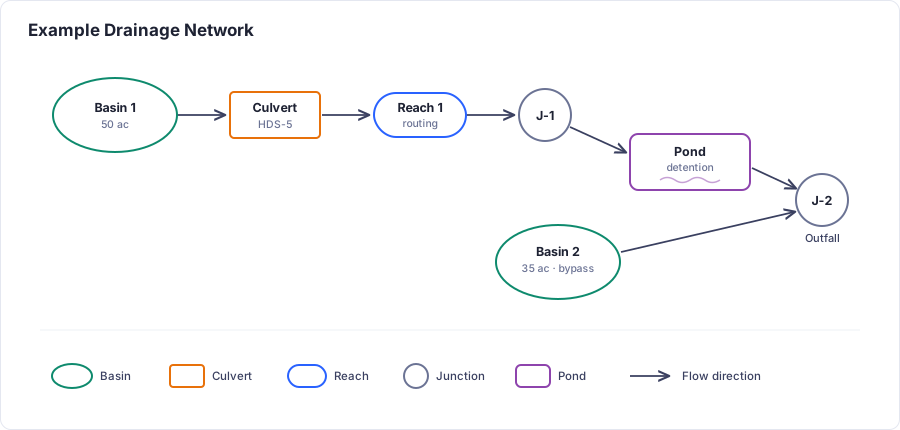
Element Types
- Basin: Generates runoff from rainfall (Rational, MRM, or Unit Hydrograph).
- Reach: Routes hydrographs through channels (routing methods).
- Junction: Combines flows from multiple upstream elements.
- Pond: Routes flow through detention/retention facilities.
- Culvert: Analyzes culvert capacity using HDS-5 methodology.
- Channel: Evaluates open channel capacity using Manning's equation.
Hydrologic vs. Hydraulic Elements
HydraLink includes both hydrologic and hydraulic element types. Understanding the distinction helps in building an effective model:
- Hydrologic elements (Basins, Reaches, Junctions, Ponds) are concerned with stormwater flows: how rainfall becomes runoff, how hydrographs travel through the drainage system, and how detention facilities store and release flow.
- Hydraulic elements (Culverts, Channels) are concerned with the physical flow properties of specific conveyance structures, including capacity, headwater depth, velocity, flow regime, and whether a structure can convey the design flow.
HydraLink allows hydraulic elements to be calculated alongside the hydrology within a single program. This keeps all calculations in one place and allows changes to be dynamic, so when the hydrology changes (e.g., updated basin areas or runoff coefficients), the hydraulic calculations automatically update as well.
Practical Applications
Combining hydrologic and hydraulic elements in a single model is useful in many scenarios. For example, when designing large estate-style subdivisions with roadside ditches for stormwater conveyance, the hydrologic basins can be connected directly to the hydraulic channel or culvert elements. As the drainage design evolves, the hydraulic capacity analysis stays in sync with the changing hydrology.
Element Placement Guidance: When a hydraulic element (culvert or channel) needs to be analyzed in conjunction with a reach that provides hydrograph routing, the hydraulic element should be placed upstream of the reach (before the reach in the network). This ensures that the hydraulic element analyzes the peak flow rather than the attenuated (reduced) flow that results from reach routing.
Plan Management & Scenario Comparison
HydraLink’s plan management system allows engineers to quickly compare different drainage scenarios within a single project. Plans provide a powerful way to evaluate pre-development vs. post-development conditions, or to compare alternative design options.
- Multiple plans per project: create separate plans for pre-development, post-development, and design alternatives. Each plan can have its own set of elements and configurations.
- Linked elements can be shared across plans so that parameters that stay the same (such as off-site basins, existing channels, or shared storm data) are automatically updated across all plans when edited in any one plan. This eliminates the need to manually synchronize common data between scenarios.
- Quick scenario switching lets you switch between plans to compare results side by side, making it easy to evaluate different design alternatives.
Data Import
HydraLink supports importing drainage area data from external sources to accelerate project setup:
- Civil 3D Parcels (LandXML): import basins directly from Autodesk Civil 3D parcel data exported as LandXML files. Basin boundaries and areas are imported and displayed on the map view.
- GIS Shapefiles: import drainage area boundaries from GIS shapefiles. Imported areas are displayed on the interactive map view for spatial reference and can be used to define basin elements.
If you’re working in Civil 3D, the Civil 3D add-in is the recommended path, since it keeps parcel data live and hands off a complete project in one save. LandXML and shapefile import remain available for boundary-only workflows.
Map View
HydraLink provides an interactive map canvas for spatial layout of your drainage network. Elements are placed and connected on the map, providing a visual representation of the drainage system topology. The map supports street (light and dark) and USGS aerial basemap choices, zoom/pan navigation, and element repositioning by drag-and-drop.
Typical Workflow
- Create a new project
- Set up storm events and precipitation data (NOAA Atlas 14 or manual entry)
- Import basins from Civil 3D/GIS or add elements manually to the map (or start from Civil 3D; see Civil 3D Integration)
- Build the drainage network (connect elements downstream)
- Configure element properties
- Create additional plans for scenario comparison as needed
- Run the solver
- View results and hydrographs
- Generate reports (DOCX/PDF)
Target Audience
Civil engineers, stormwater designers, and hydrology professionals performing drainage studies, detention design, and hydraulic analysis.