Data Import
Working in Civil 3D? The Civil 3D add-in provides a live parcel calculator and one-step project handoff, so no file export is needed. The imports below are for boundary-only workflows.
Overview
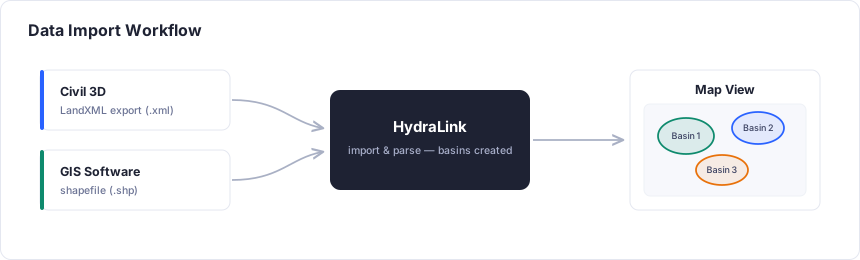
HydraLink supports importing drainage area data from external sources to accelerate project setup. Rather than manually defining every basin, you can import parcel or drainage area boundaries from Civil 3D or GIS files and have them automatically placed on the map view.
Civil 3D Parcels (LandXML)
Import basin areas directly from Autodesk Civil 3D parcel data exported as LandXML files. This is useful when drainage basins have already been delineated in Civil 3D as part of the site grading and layout process.
In Civil 3D, export the parcels as a LandXML file (.xml), then follow the
import steps below.
What Gets Imported
| LandXML Property | HydraLink Property |
|---|---|
| Parcel name | Basin name |
| Parcel geometry | Basin area, computed from the boundary (or from an attribute you map) |
| Parcel boundary coordinates | Basin location on map |
After import, basins still need their hydrologic parameters configured (methodology, C or CN, Tc, etc.). The import provides the geometry and area; the engineer sets the runoff properties, unless CN or C attributes were mapped in the wizard.
GIS Shapefiles
Import drainage area boundaries from ESRI shapefiles (.shp). This is useful
when drainage areas have been delineated in GIS software (ArcGIS, QGIS, etc.) or when
working with jurisdictional drainage area datasets.
Prepare a polygon shapefile containing drainage area boundaries, then follow the import steps below. HydraLink reads the polygon geometries and the attribute table.
Supported Formats
| Format | Extension | Notes |
|---|---|---|
| ESRI Shapefile | .shp | Include the companion .prj so the coordinate system is detected; without it you will be asked to choose one |
| GeoJSON | .geojson, .json | Polygon features |
| LandXML | .xml | Civil 3D parcel export |
Import Steps
Every supported format follows the same path:
- Click Import in the Home ribbon tab and choose the file.
- The boundaries are drawn on the map as a layer.
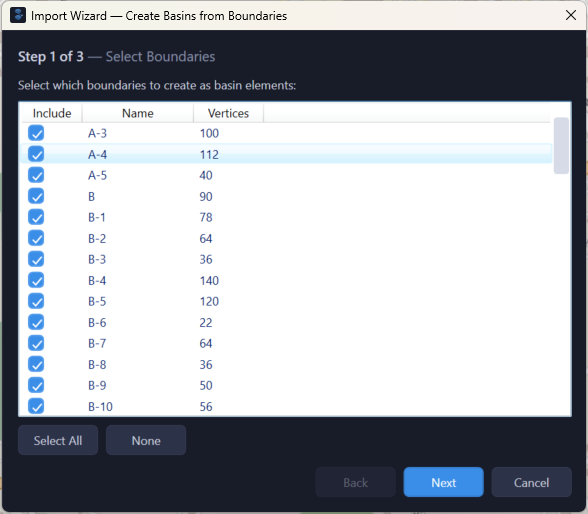
- HydraLink asks whether you want to create basin elements from those boundaries. Answer Yes.
- In the Import Wizard, choose which boundaries to use, the basin methodology and loss method, and optionally map a name, area, CN, or C attribute (with its area units); then say how names that already exist should be treated.
- Basins are placed at each boundary's centroid.
Each basin’s area comes from its boundary (or from the area attribute you mapped) and stays tied to it: the Area field cannot be typed while the link holds, and importing the file again with existing basins updated refreshes it. To enter an area of your own, right-click the basin and choose Unlink Area from Polygon. Deleting the boundary layer unlinks its basins and keeps their areas.
Map View Integration
Imported basins and drainage areas are displayed on HydraLink’s interactive map canvas alongside other model elements. The map provides:
- Street or USGS aerial basemap for spatial reference
- Pan and zoom navigation
- Visual overlay of imported drainage area boundaries
- Click-to-select for editing basin properties
- Drag-and-drop repositioning of elements
Considerations
- HydraLink reads the file's coordinate system when it is declared (shapefile
.prj, LandXML); otherwise it asks you to choose one, so know the source CRS before importing. - Imported basins provide geometry only; hydrologic parameters (methodology, C/CN, Tc, etc.) must be configured after import.
- For large projects, importing basins from Civil 3D or GIS can significantly reduce setup time compared to manual entry.
- Verify that imported areas match expected values after import, as coordinate transformations can sometimes introduce small rounding differences.