Getting Started with HydraLink
This guide walks you through creating your first HydraLink project from start to finish. By the end, you'll have set up storm events, built a simple drainage network, run the solver, and viewed your results.
1 Create a New Project
Begin by creating a new project file to hold all of your drainage elements, storm data, and results.
- HydraLink opens straight into a fresh, empty project. There is nothing to dismiss before you start working.
- To start over later, use Home → New in the ribbon (or press
Ctrl+N). Home → Open (Ctrl+O) opens an existing project, and the small arrow beside it lists your recent projects. - The map canvas will open ready for you to navigate to your project location and place elements.
2 Set Up Storm Events
Before running any analysis, you need to define the design storms that HydraLink will use to generate rainfall and compute runoff.
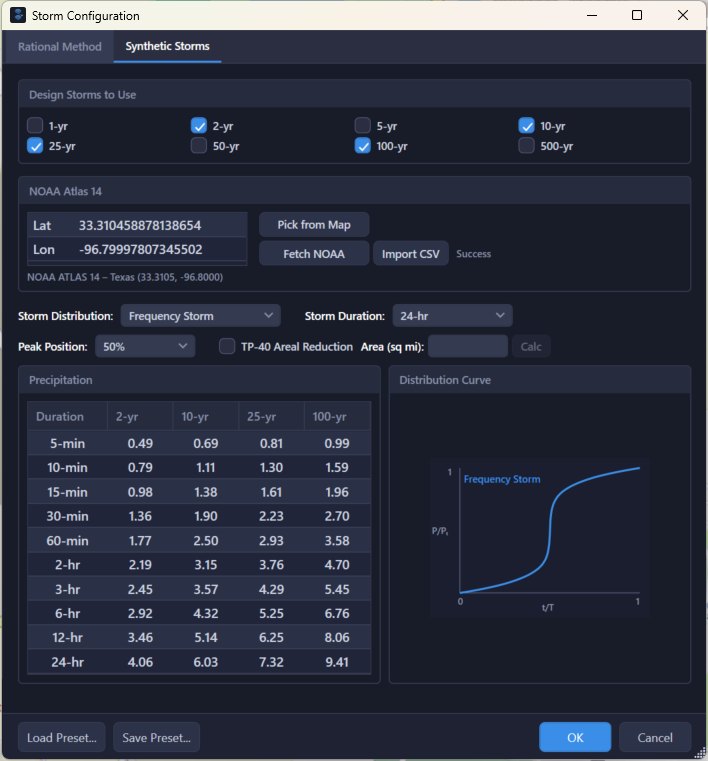
- Click Storm in the Model ribbon tab to open the Storm Configuration dialog.
- The dialog has two tabs: Intensity Based for the Rational and Modified Rational methods, and Synthetic Storms for depth-driven unit hydrograph storms. Configure whichever your basins use, since a project can use both.
- Add design storms by selecting a return period (e.g., 2-yr, 5-yr, 10-yr, 25-yr, 100-yr).
- On Synthetic Storms, choose a rainfall distribution (SCS Type I, Type IA, Type II, Type III, a frequency storm, or a custom distribution) and enter the total rainfall depth (inches) for the storm duration.
- For NOAA Atlas 14: use the built-in lookup to fetch precipitation frequency estimates for your site, or import them from a CSV.
- On Intensity Based, the Intensity Method group decides how intensity is resolved: interpolate the table directly (log-log or linear), or use IDF equation coefficients, typed in from published criteria or fitted from the table.
- For the Frequency Storm (Unit Hydrograph): the alternating block method constructs a design hyetograph from the depth-duration-frequency data.
3 Add Elements to the Map
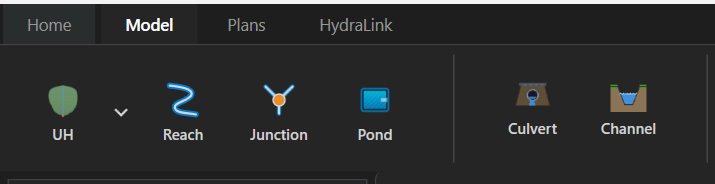
The Model ribbon tab holds the element buttons. In map view you place an element by dragging its button onto the map and dropping it where you want it.
- Basin: drag the Basin button onto the map to place a drainage basin. The arrow beside it selects the method the new basin uses: UH, Rational, or MRM.
- Reach: click the Reach button, then click the start and end points on the map; a reach needs both ends.
- Junction: drag the Junction button onto the map to place a confluence point.
- Pond: drag the Pond button onto the map to place a detention or retention pond.
- Culvert: drag the Culvert button onto the map to place a culvert crossing.
- Channel: drag the Channel button onto the map to place an open channel.
Elements appear on the map canvas and can be repositioned by dragging them to the desired location. Working from the Quick Edit grid instead of the map? There a single click on an element button adds it at the center of the current map view.
Working in Civil 3D? See Civil 3D Integration for a live parcel calculator that hands off a complete basin/junction network to HydraLink desktop in one save.
4 Connect Elements
Defining the flow connections between elements establishes your drainage network topology.
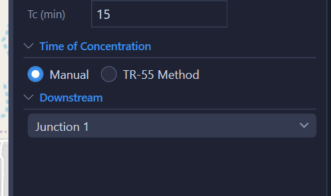
- Each element has a Drains To property that specifies where its outflow is directed.
- Select an element, then set its Drains To element in the properties panel.
- This defines the flow direction and overall network topology.
- HydraLink automatically determines computation order via topological sort, solving upstream elements before downstream ones.
- A valid network must flow from upstream basins to downstream outlets without circular references.
5 Configure Element Properties
Select any element to open its properties panel and enter the required parameters for analysis.
- Basin: set drainage area, methodology (Rational / Modified Rational / Unit Hydrograph), runoff coefficients or curve numbers, and time of concentration.
- Reach: select a routing method and enter channel parameters (length, slope, cross-section).
- Pond: define storage using an elevation-area table and configure outlet structures for pond routing.
- Culvert: specify barrel shape, dimensions, entrance type, and road overtopping parameters.
- Channel: choose a cross-section shape, enter geometry, Manning's n, and slope for capacity analysis.
See the individual element help pages linked above for detailed parameter guidance.
6 Run the Solver
Once your network is defined and all element properties are configured, you are ready to solve.
- Click the Run button in the Model ribbon tab. The Run button is a split-button, so click the dropdown arrow to choose Run Active Plan or Run All Plans.
- HydraLink validates the network for errors (missing connections, circular references, incomplete parameters).
- The solver then processes each element from upstream to downstream, computing runoff, routing flows, and analyzing hydraulics.
- Progress is shown in the status bar at the bottom of the window.
- Any errors or warnings are listed in the Run Log tab.
7 View Results
After solving, click any element to view its computed results in the properties panel and results dialogs.
- Basin: peak flow, time to peak, runoff volume, and the full runoff hydrograph.
- Reach: routed peak flow, attenuation, and a hydrograph comparison (inflow vs. outflow).
- Pond: peak stage, peak outflow, storage used, and stage-storage-discharge curves.
- Culvert: headwater elevation, HW/D ratio, control type (inlet or outlet), capacity, and road overtopping flow.
- Channel: normal depth, velocity, Froude number, flow regime, and channel capacity.
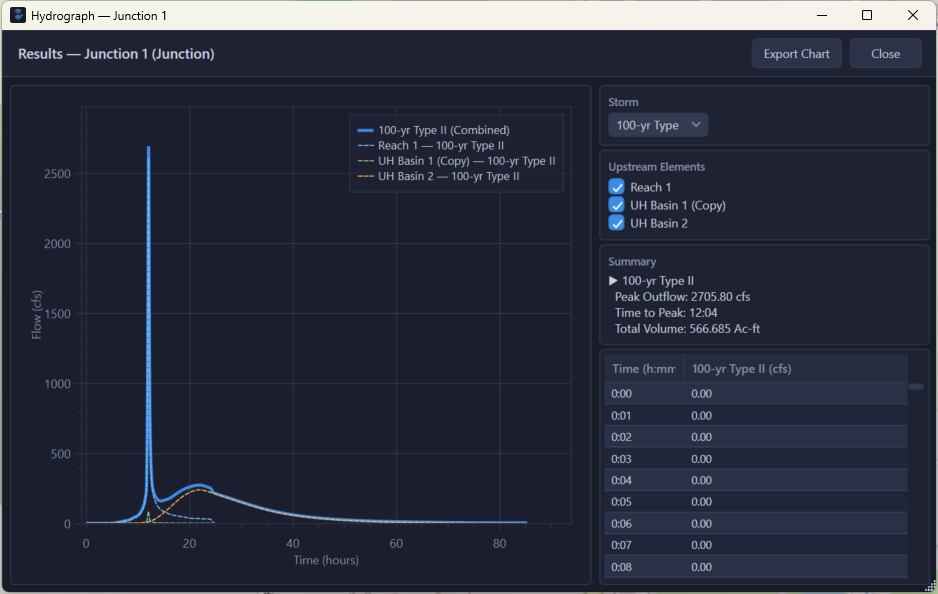
Use the Hydrograph Results dialog to view and compare hydrographs across multiple elements and storm events on a single plot.
8 Generate Reports
HydraLink can produce comprehensive reports documenting your entire analysis.
- Click the Report button in the ribbon toolbar.
- Tick the output formats you want: PDF, Word (.docx), and/or Excel tables (.xlsx), in any combination.
- The report includes:
- Project information and description
- Storm event summary
- Element parameters for each component
- Computed results (peak flows, stages, velocities)
- IDF curves, MRM and pond-routing hydrograph plots
- Choose which plans, sections (hydrology, hydraulics, detention ponds), storms and elements to include, pick Detailed or Summary detail, and add a cover page and table of contents.
Tips for New Users
- Start with simple networks (1 basin → 1 reach → 1 outlet) before building complex systems.
- Save frequently: HydraLink project files (
.hyd) contain all data.