Canvas & Selection
The canvas is the sheet. It is drawn at real paper size, so what you see is what the export produces. Zoom is only magnification, never a change to the drawing.
Navigation
| Action | How |
|---|---|
| Zoom | Mouse wheel. The zoom centers on the pointer, so put the cursor where you want to end up. |
| Pan | Middle mouse button drag, from any tool. Or hold Space and drag with the left button, also from any tool: the pointer turns into a hand, and a path you are drawing carries on after the pan. |
| Fit the sheet | Ctrl+0, or VIEW ▸ Zoom Extents. |
| Zoom in / out by steps | Ctrl+Plus and Ctrl+Minus (either keyboard) zoom at the pointer. VIEW ▸ Zoom In and Zoom Out zoom at the middle of the view. |
The status bar shows the current zoom percentage and the cursor's position on the page. While a drawing tool or Paint Style is on, it also names the tool and what it wants next; see Drawing Tools.
Grid and Snap
Grid on the VIEW tab draws a reference grid; Snap makes drawing and dragging land on it. The grid size list offers 1, 5, 10, 25 and 50 page units. Neither affects the export; the grid is never drawn into output.
Selecting
The Select tool on the DRAW tab is the default mode; Esc from
any other tool returns to it.
- Click an object to select it. The scene tree highlights the same item, and the property panel switches to the tab for that kind of object.
- Ctrl+Click adds or removes one object from the selection.
- Shift+Click in the scene tree extends a range; Shift also extends a marquee selection on the canvas.
- Click empty canvas to clear the selection (and leave path-edit mode).
- A terrain is never picked on the canvas, by a click or a marquee: it usually lies under the whole plan, and would take every click from the areas drawn over it. Select it in the scene tree.
Marquee selection
Dragging on empty canvas with the left button draws a selection window, following the CAD convention:
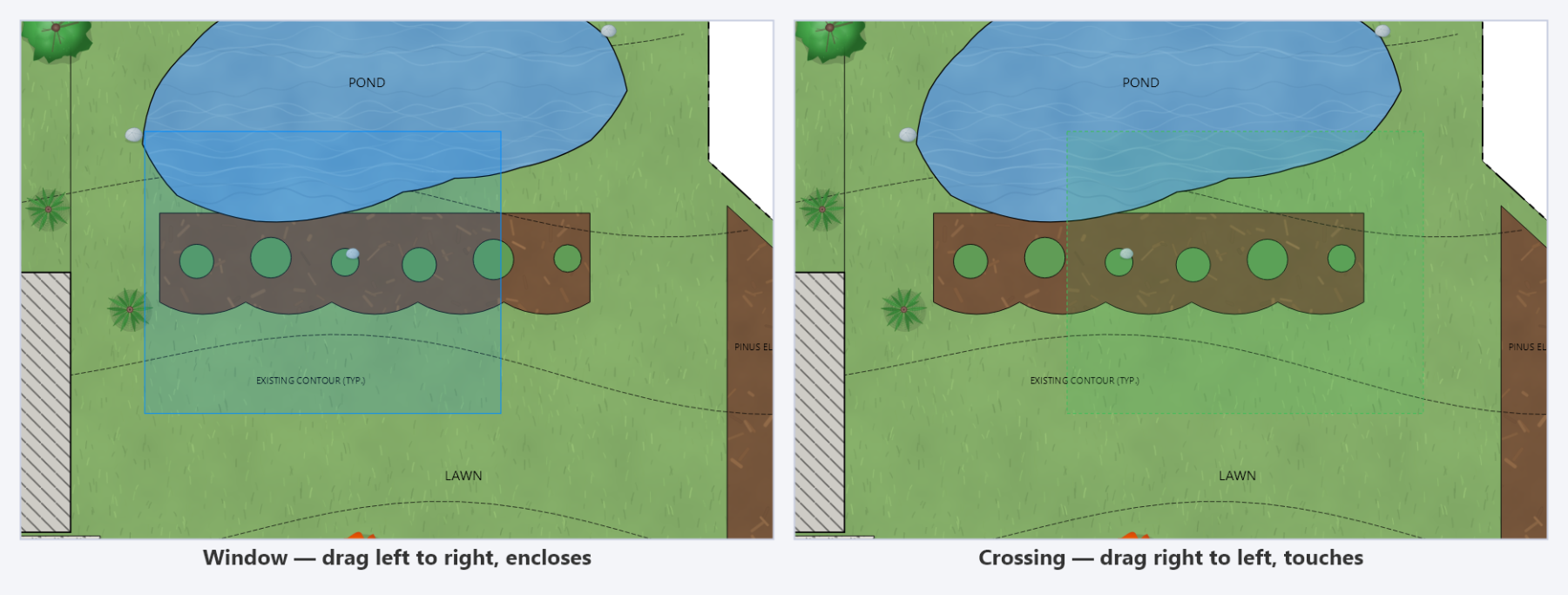
- Left to right draws a solid blue window. Only objects completely inside are selected.
- Right to left draws a dashed green crossing. Anything the box touches is selected.
Hold Shift while dragging to add the marquee result to the existing selection.
Moving Objects
Drag any selected object you created to move it. When several objects are selected, dragging one moves them all as a group, and the whole move is a single undo step. A click without movement on a member of a multi-selection collapses the selection down to that one object.
Objects that came from CAD are anchored to the sheet: styling applies to them, but they are not dragged around. Move geometry in the drawing and re-export.
Rotate and Scale Handles
A selected object you created shows an oriented frame with four corner handles for uniform
scaling and a stemmed handle above it for rotation. Hold Shift while rotating to
snap to 15° increments.
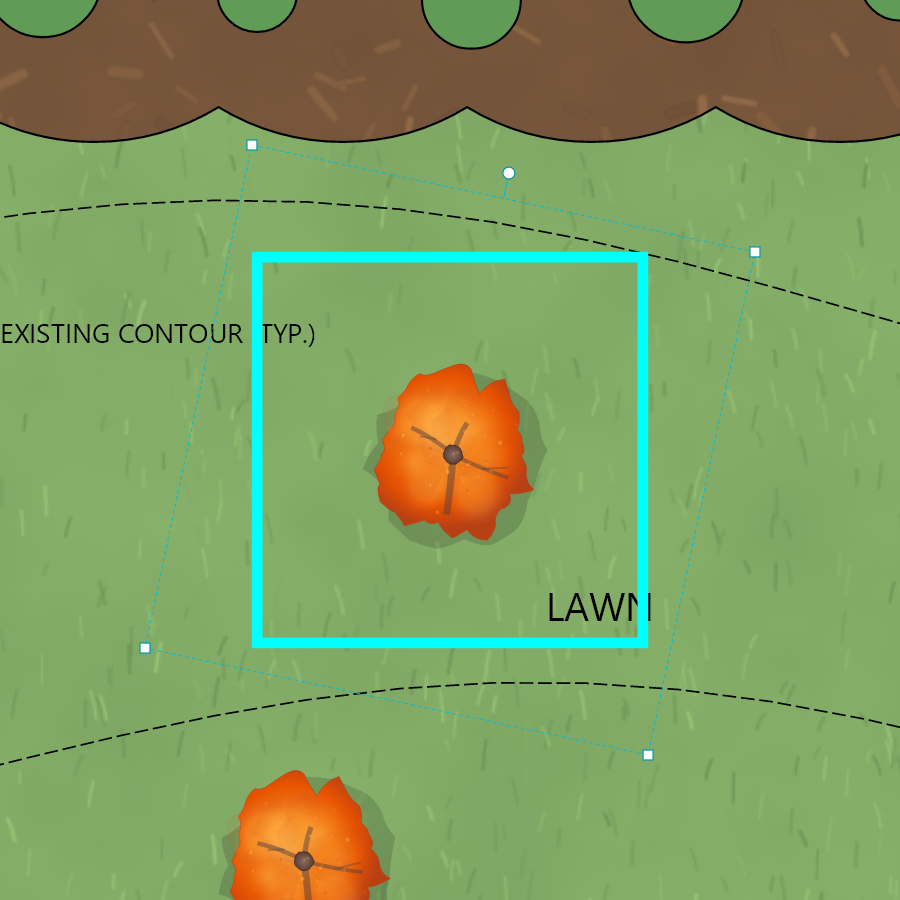
The frame adapts to what is selected:
- Images and symbols scale and rotate freely.
- Text scales its font size rather than stretching the letterforms.
- Shapes and merged paths transform their points about the center, uniform scale only, so arc segments stay valid.
- Circles resize by radius and have no rotation handle.
- Scale bars resize physically while keeping their meaning, because the drawing scale value adjusts so the bar still says something true.
Each drag is one undo step, and a click that moves nothing pushes no undo at all. For exact numbers, use the TRANSFORM ribbon tab: set an absolute rotation, rotate by an increment, turn 90° either way, or scale by a percentage.
Aligning
With several objects selected, the Align group on the VIEW tab aligns them left, center, right, top, middle or bottom, and distributes them evenly horizontally or vertically.
Editing Paths
Right-click a path you drew and choose Edit Path to
enter path-edit mode: vertices become draggable handles, and the
EDIT PATH ribbon tab appears for numeric editing. Arc segments show their
center crosshair, radius lines, tangents and PI point while being edited, and dragging a
shared vertex adjusts the neighboring arc so tangency is preserved. Esc leaves
path-edit mode. See Drawing Tools.
Right-Click on the Canvas
Right-clicking an object gives the same operations as the scene tree's context menu (draw order, overrides, presets, materials, delete), plus Edit Path on a path. See Layers and Objects.
Keyboard
Ctrl+Z/Ctrl+Y: undo and redo, 50 levelsCtrl+C/Ctrl+V/Ctrl+D: copy, paste, duplicateDel: delete the selectionEsc: cancel the current tool, leave path edit, exit Paint StyleCtrl+S/Ctrl+O: save and open