CAD Auto-Mapping
A CAD drawing already says a great deal about what is on it. A hatch called
GRAVEL, a linetype called PHANTOM, a block called
SSMH, a layer called C-BLDG: those names are drafting
conventions, and Studio reads them.
Auto-mapping is why an imported sheet is already partly styled before you touch anything.
What It Recognizes
| From the drawing | Becomes |
|---|---|
Hatch pattern names, the standard acad.pat
patterns, plus office variations on them |
A material on the hatched area where the pattern stands for a site material, or a fill texture directly where it does not (section hatches, for example) |
Linetype names, both acad.lin and
acadiso.lin names, and common office conventions |
A stroke style: layer linetypes set the layer's stroke, entity linetypes become object overrides |
| Block names | A library plan symbol in place of the block |
Layer names, as the US National CAD Standard spells them
(C-BLDG, V-PVMT-ASPH, L-PLNT-GDCR,
G-ANNO-TTLB) and in plain words (Concrete,
Grass) |
A material on the layer for surfaces (buildings, asphalt, concrete, turf, groundcover, planting beds, rock, water and the rest), or Render as plain CAD for the title block, seals, revisions, tables, charts and notes |
Hatch names are read for the material they mean, not only for the standard pattern: a
hatch called MEADOW-MIX is tagged with that material directly.
A drafting pattern with no material behind it, such as ANSI31 (section
hatching, parking striping) or HONEY, gets its texture on a clear ground and
draws with its own lines from the drawing: the angle, spacing and dashes it plots at, in
its line color and weight.
Common office naming variations are recognized too.
The Import Prompt
On a fresh CAD import, Studio lists what it recognized and asks before changing anything:
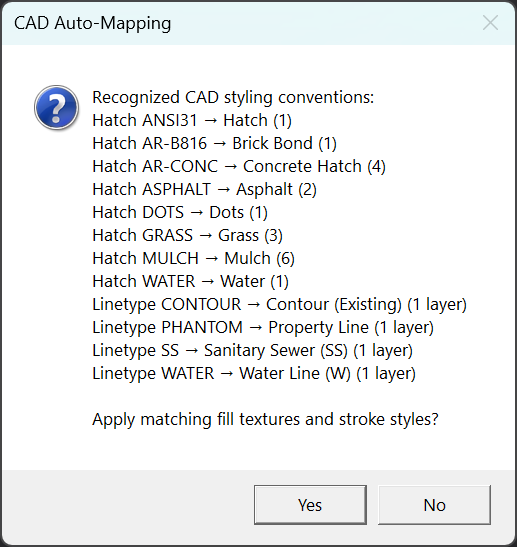
Accepting applies everything as a single undo step. Declining leaves the drawing exactly as exported. Nothing is lost either way, and you can re-run it later from FILE ▸ CAD Mappings.
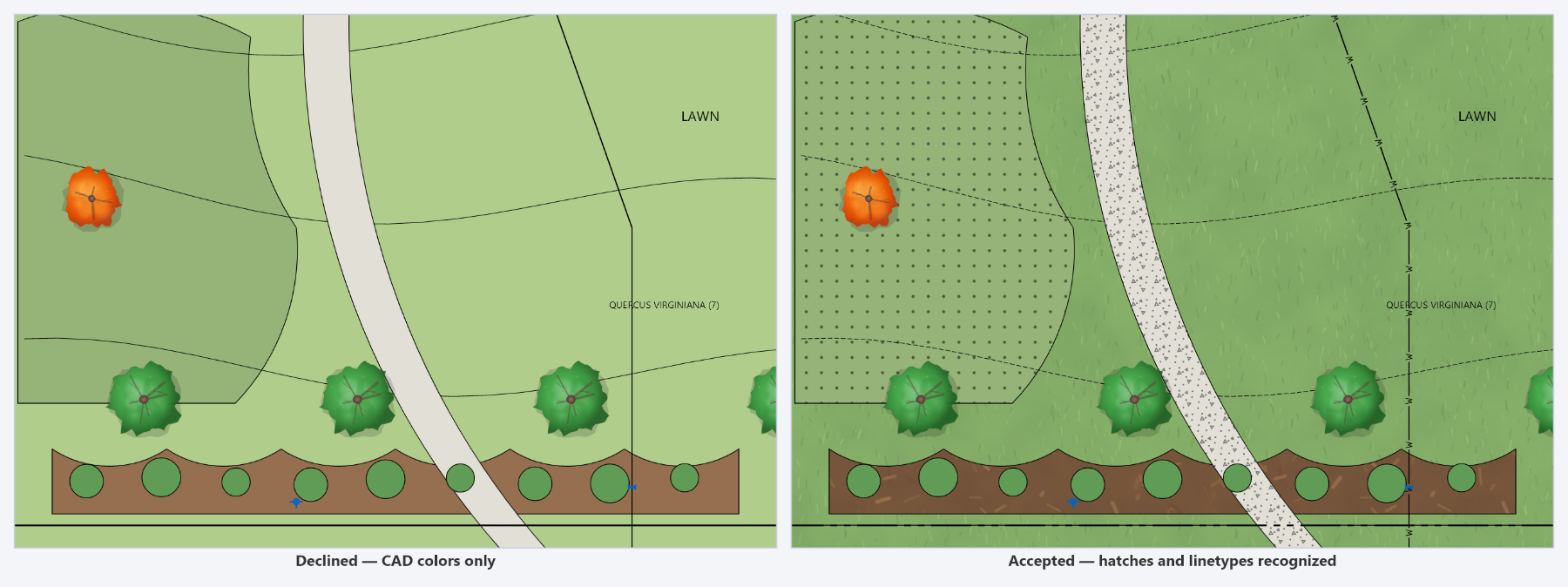
Why Materials and Not Textures
Tagging a material rather than pinning a texture lets every look draw that surface its own way.
How It Interacts with Remembered Styles
Remembered layer styles from the Layer Style Database are applied first, and auto-mapping does not overwrite a stroke style they set, so what you taught Studio about your own layers wins over a generic linetype match. A layer name never changes a remembered layer, and gives a material only to a layer that has none yet.
What Layer Names Do
A layer's material shows on the closed shapes drawn on it: building outlines fill as
roofs and cast the look's shadow, a closed sidewalk outline fills as concrete. Paving and
planting drawn as open linework change only once you paint them, and
Paint on a recognized layer gives the painted
area that layer's material. A layer that holds a surface's labels, its interior or detail
linework, or a surface being removed (-TEXT, -ANNO,
INT, -PATT, DEMO) is left alone, and so is
C-WATR, which is the water line, not a pond.
Sheet layers render as plain CAD, so the title block, tables and notes keep their CAD lettering under a hand-drawn look. A table drawn on the same layer as plan linework cannot be told apart by its name: flag its layer by hand, or move the table to a layer of its own in CAD.
In a look that casts shadows, a building stands above the ground's linework, so a line that crosses a roof (a drainage divide, say) passes under it. Choose None as the building layer's material, or decline the prompt, where that line matters more than the roofs.
Getting More Out of It
Auto-mapping rewards ordinary CAD discipline. Nothing here requires changing how you draft, but the closer a drawing is to convention, the more arrives already styled:
- Use real linetypes on layers rather than drawing dashes by hand.
- Use real hatches with their standard pattern names rather than filled polylines.
- Export symbols as symbols. A block set to Keep as Symbol keeps its name, which rules can match. An exploded plant block can still become library artwork through Plant Symbols, which names it from the legend; any other exploded block stays linework.
- Keep block names descriptive. The name is the only thing Studio has to go on.
When a Name Is Not Recognized
Offices name things their own way, so the built-in tables will not cover everything. Teach it yours once, in FILE ▸ CAD Mappings: the dialog lists the CAD names present in the open drawing next to what each currently resolves to, so the unmapped ones are easy to find and turn into rules. Save, and Studio re-offers the mapping prompt on the drawing you already have open.