Materials
A material says what a surface is, not how to draw it. Tag an area as Turf, and every look knows what to do with it: a conventional grass hatch on a CAD sheet, hand hatch in ink, scribble in marker, a wash in watercolor. Tag the parking lot as Asphalt and the walks as Concrete, and the whole plan restyles itself when you change look.
This is the single highest-value thing to do to an imported drawing. Half a dozen materials on the big areas is usually the whole setup.
Assigning a Material
- Fill and Stroke ▸ Fill ▸ Material, with a layer or an object selected.
- Right-click ▸ Material, on a layer or object in the scene tree, or on the canvas.
Assigning a material to a shape that came in as black or transparent CAD linework also gives it a sensible fill color to start from, so the drawing gets usable immediately instead of needing a color picked first.
The Materials
| Group | Materials |
|---|---|
| Planting | Turf / Lawn, Planting Bed, Groundcover, Mulch, Meadow / Native Grass, Artificial Turf |
| Paving and hardscape | Concrete, Asphalt, Pavers, Wood Deck, Gravel, Decomposed Granite, Stone, Rubber Surface |
| Water and ground | Water, Wetland, Bioretention, Sand, Soil / Earth, Riprap |
| Structures | Building, Roof, Green Roof |
| Untagged | None, the default: the surface is drawn from its own fill and texture settings only. |
Material vs. Texture
The two coexist by a simple rule: an explicit texture always wins. A material only supplies the fill when the texture is set to None.
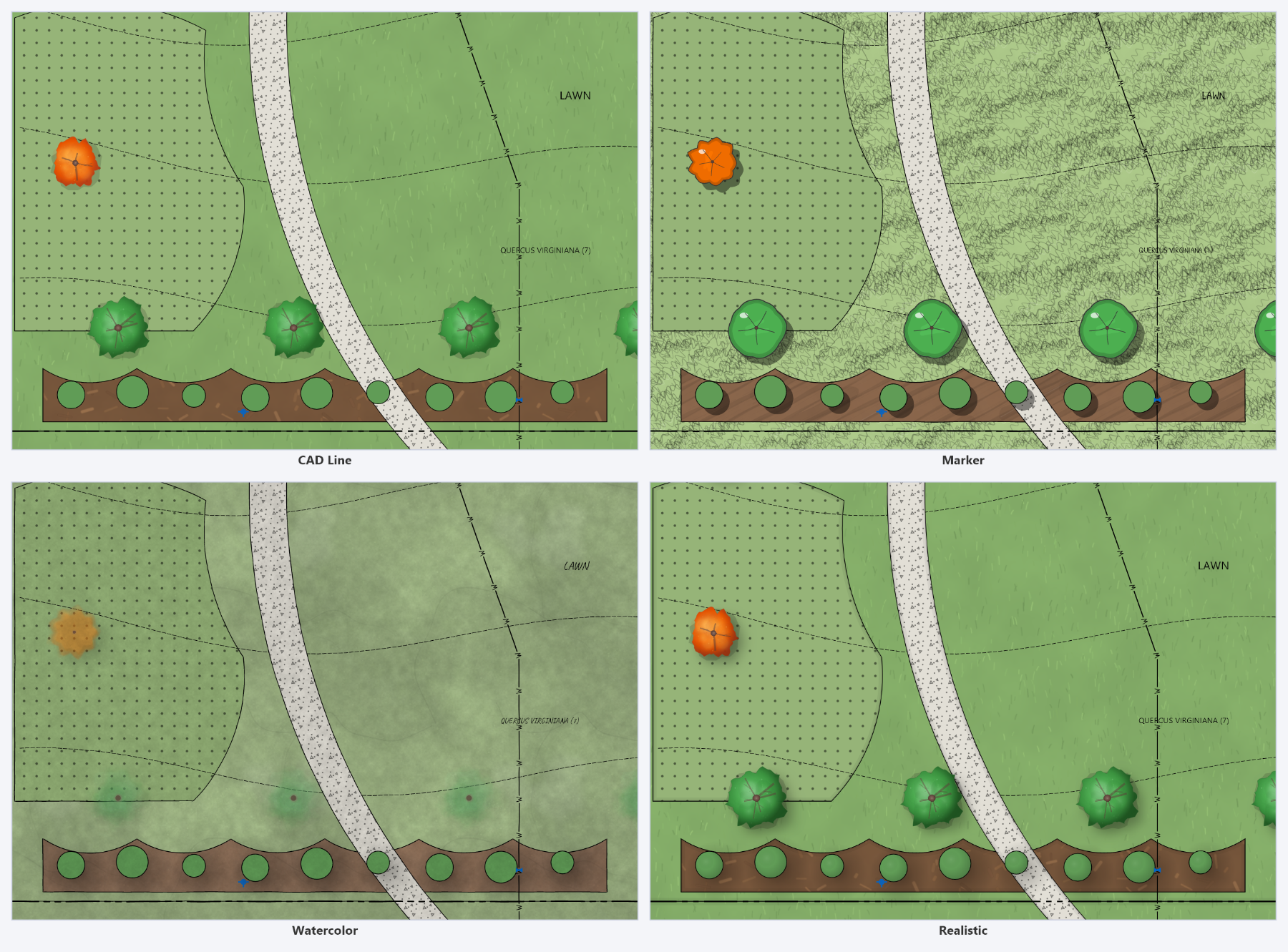
- Want the sheet to restyle itself when you change look? Set a material, leave the texture at None.
- Want this surface drawn exactly this way in every look? Set the texture.
Colors behave the same way. Your fill color is kept when the look changes; only the treatment over it changes.
How Each Look Draws a Material
Each look draws each material its own way, tuned for legibility, which is why a material usually reads better than the same texture picked by hand. CAD Line keeps to drafting conventions, the hand-media looks draw in their own media, and Realistic uses photographic tiles.
The material table is yours to change. VIEW ▸ Look Settings ▸ Materials... opens it, one look at a time: pick the look, then set any material's texture, tile scale, strength and default color. Rows that differ from the built-in table are marked, each row has its own Reset, and Reset This Look or Reset All puts the defaults back. Changes preview on the canvas as you make them and apply to every document on this machine, not just the open one. Export... and Import... move the table between machines so an office can share one rendering standard the same way it shares mapping rules.
A material's scale and strength adjust the texture size and intensity on top of the layer's own texture settings, so a layer whose texture scale you have already adjusted keeps that adjustment under every material. They only apply when the material supplies the texture; a texture you set explicitly is drawn exactly as you set it.
Materials from CAD
CAD auto-mapping tags materials automatically
wherever a hatch pattern name stands for a site material. An area hatched
GRAVEL becomes Gravel, and office names that carry a material word are read the
same way. It deliberately tags the material rather than pinning a texture, so CAD Line
renders the way the sheet always did while the other looks stay free to restyle it.
Hatch patterns that are not site materials, such as ANSI section hatches, map to a texture directly, because there is no material they stand for. A mapping rule can point a hatch name at a material as well as at a texture.
Depth and Shadows
Some materials get extra attention in the looks that use depth shading: buildings and roofs take shadows and edge shading, and water takes a sheen from the sunlit side. That is another reason to tag structures as Building or Roof rather than leaving them as generic shapes. See Look Settings for the sun direction and depth controls.
A fast first pass on an imported site plan
- Turf on the lawn layer, Planting Bed on the beds.
- Concrete on walks, Asphalt on drives and parking.
- Building on the structure footprint, Roof if the roof is shown.
- Water on ponds, Riprap on outfall protection.
- Now switch looks. The plan is already a rendering.