Style Gallery
FILE ▸ Style Gallery renders the open drawing in every look and writes them to a single labeled PNG. It is the fastest honest answer to "which look suits this plan?" The sheet is also a good thing to put in front of a client.
Using It
- Open and style the drawing as you normally would: tag materials, set colors.
- Choose FILE ▸ Style Gallery.
- Pick a filename. The default is the drawing name with
- looksappended. - Wait for the render. Seven full renders of a large sheet take a moment; the status bar names the look being drawn (3 of 7, and so on) and the seconds so far.
What You Get
One PNG holding a labeled tile per look, arranged four across, each tile a complete render of your sheet at about 1000 pixels wide. Very tall pages get proportionally smaller tiles so the image stays a sensible size.
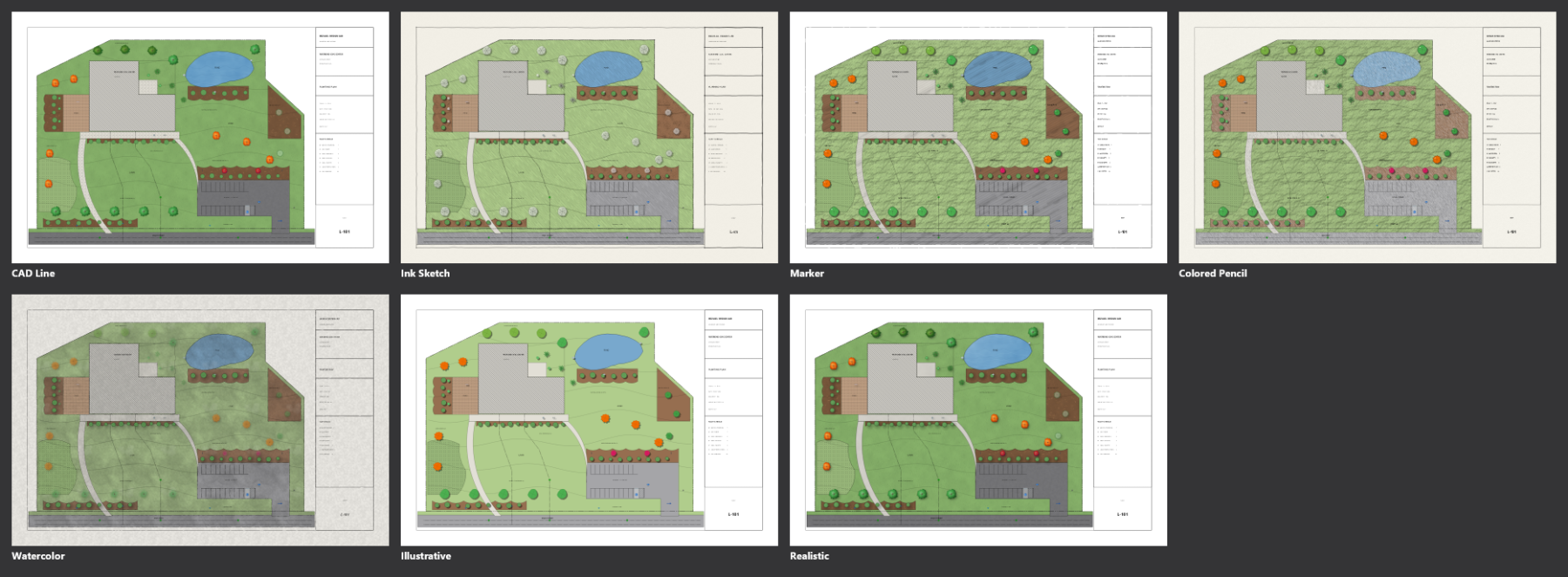
What It Does to Your Document
Nothing permanent. The document's look is swapped for each tile and put back at the end. No undo entry is created, and the file is not modified.
Use it as a client deliverable
Presenting a single gallery sheet early ("here is your plan as an ink sketch, as a marker rendering, as a watercolor") settles the graphic direction in one meeting instead of three rounds of revisions. The whole exercise costs one menu click, because every tile is the same drawing.
The gallery is a review image, not a deliverable render. For a presentation drawing at plot quality, pick the look and use FILE ▸ Export File. See Images & PDF.