Textures & Gradients
A fill can be a flat color, a gradient, a texture, or a texture over a gradient. Textures are drawn at a physical size on the sheet, so a gravel fill reads as gravel at plot scale rather than as noise.
Gradients
Fill Style on the Fill sub-tab offers three choices:
| Fill Style | Behavior |
|---|---|
| Solid | One color, the default. |
| Linear Gradient | Blends from the fill color to an End Color across the shape, at an angle you set. 0° runs left to right and the angle increases counter-clockwise. The gradient is measured from the shape's own extents, so every shape gets a full sweep regardless of size. |
| Radial Gradient | Blends outward from the shape's center to its furthest edge. |
End Opacity is separate from the main fill opacity, so a gradient can fade to nothing: a soft edge on a planting bed, a water body that shallows out, a highlight that dissolves.
Start Position and End Position say where the blend runs, as a share of the sweep (along the angle, or out from the center). The fill color holds up to the start, the end color from the end on, and the two blend between. At 0 and 100 the blend spans the whole shape. A white end color at zero opacity with the start at 60 leaves the middle of a shape untouched and fades only its outer band: a vignette. An end set before the start gives a hard edge at the start instead of a blend.
Gradients apply to closed shapes, merged paths and circles, at layer level or as an object override, and a texture composes over the top of one.
Textures
Texture Type in the Settings section of the Fill sub-tab picks the pattern. The list is grouped:
| Category | Contents |
|---|---|
| General | None, and Custom Image. |
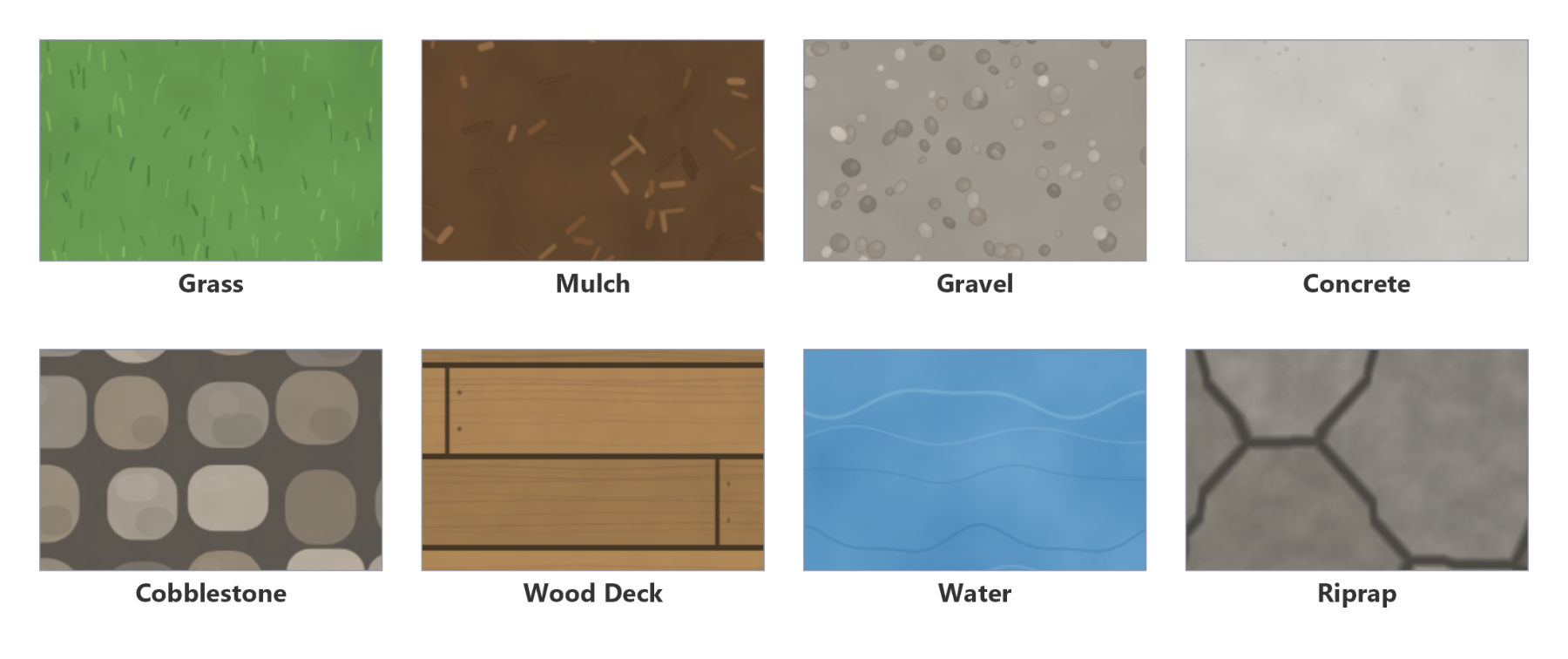
| Landscape & Site | Grass, meadow, wetland, water, soil, mulch, sand, snow, thatch. |
| Hand Media | Marker streak, colored pencil hatch, watercolor wash, scribble, hand hatch, hand cross hatch, ink stipple. |
| Hardscape & Paving | Asphalt, concrete, paving, permeable pavers, cobblestone, brick, gravel, decomposed granite, riprap, wood deck, stone, rubber. |
| Stone & Building | Granite, limestone, slate, marble, tile, metal, wood, roof shingle, stucco, fabric, cork. |
| Hatches | Conventional drafting hatches: hatch and cross hatch, earth, concrete, diagonals, horizontal and vertical lines, grid. |
| Patterns | Geometric fills: dots, stipple, noise, checker, herringbone, diamonds, zigzag, honeycomb, scales, waves, basketweave, brick bond, triangles, concentric, plus signs, random dots. |
Texture controls
- Texture Scale is the physical size of the pattern on the sheet. Because it is a paper measurement, a texture set on a 30×42 sheet will look proportionally larger on an 11×17; adjust when you change sheet size.
- Texture Rotation turns the pattern. Useful for running a wood deck or paving pattern with the geometry.
- Texture Opacity sets how strongly the pattern reads over the fill color.
- Custom Image: with the Image texture selected, browse to your own tile (PNG, JPEG or BMP). It tiles at the texture scale like any other. The picture is read once and saved inside the drawing, so the fill stays when the file moves or the drawing opens on another computer; pick the file again to take a changed version. A drawing saved before this kept only the location of the file, and the file is embedded the next time the drawing opens if it is still there; the panel says "not found" when it is not.
Color and texture together
Hatches, patterns and hand-media textures let your fill color show through, so an earth hatch in brown and the same hatch in gray are one texture with two colors. Photographic tiles like granite and cobblestone bring their own material color.
Hatch on a CAD hatch
On an area that came from a CAD drafting hatch, the texture auto-mapping gave it (Hatch for
ANSI31, Honeycomb for HONEY, and so on) draws that hatch's own
lines as the drawing plots them: its angle, spacing and dashes, in its line color and
weight. Texture scale, rotation and opacity do not change them; pick another texture to
style the area your own way.
Textures and Looks
A texture you set explicitly is honored in every look because that is the point of setting one. A surface with its texture left at None but tagged with a material is drawn by the look instead, which is what lets one document render as a CAD sheet, a marker rendering, or a watercolor without re-styling anything.
So the rule of thumb: set a material when you want the look to decide, set a texture when you have decided.
Getting hatches to read at plot scale
- Start from the texture scale the material gives you and adjust rather than guessing from zero.
- Check at 100% zoom on the sheet, not zoomed in. A hatch that looks right at 400% will fill in solid when plotted.
- Drop texture opacity rather than lightening the color when a pattern is fighting the linework over it.
- For large paved areas, a lower-contrast texture at a larger scale usually reads better than a fine one.