Land Use & Site Key
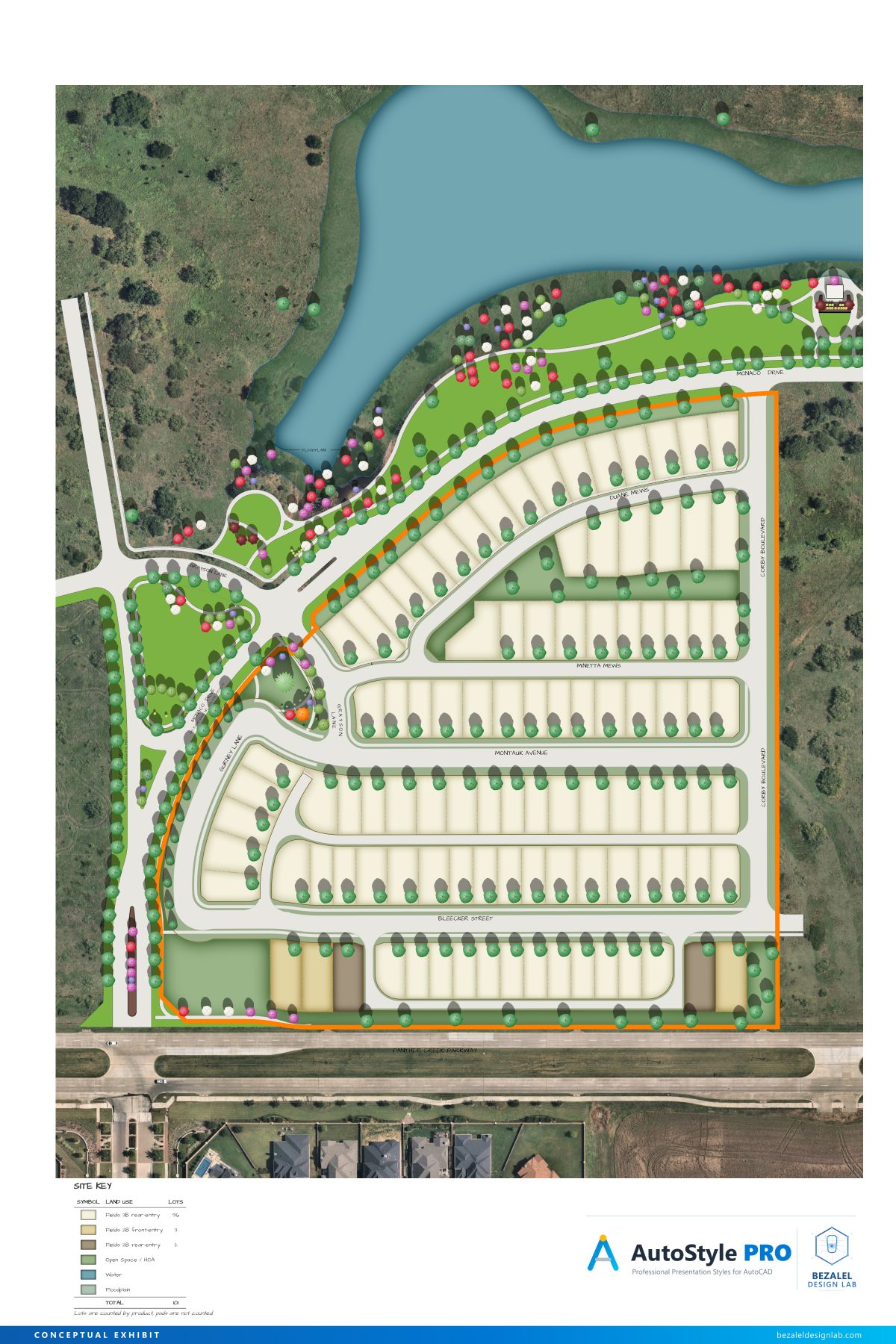
For land plans: gives lots, pads, open space, water and the floodplain their land use, so each product reads in its own colour.
In a hurry? See Land use tips.
What a land use is
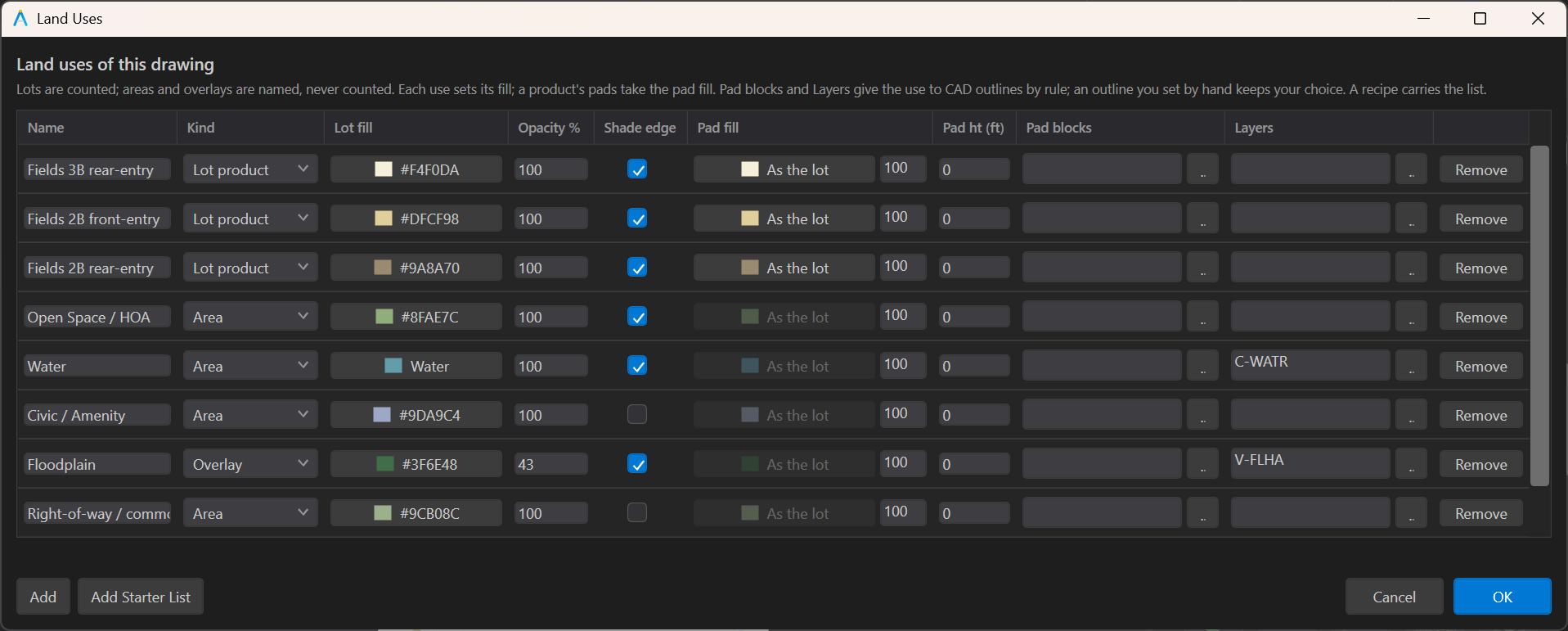
A drawing keeps its own list of land uses, each with a name, a kind and a fill. A lot product ("50' x 120' Lot", "Townhome") is the kind whose lots are counted; an area (open space and HOA lots, water, a civic tract) and an overlay (a floodplain, drawn part see-through over the others, water excepted: a pond keeps its own colour) are shown and named, never counted.
A lot need not have a pad: the count is of lots, and a pad is drawn in its product's colour and never counted. A recipe carries the list to the next drawing.
Each use's fill can take Shade edge: the fill deepens toward its outline the way water is drawn, so an overlay such as the floodplain reads less flat (the shipped land plan recipes turn it on for the floodplain and fill water a muted teal; water shades on its own).
Choose the lot lines
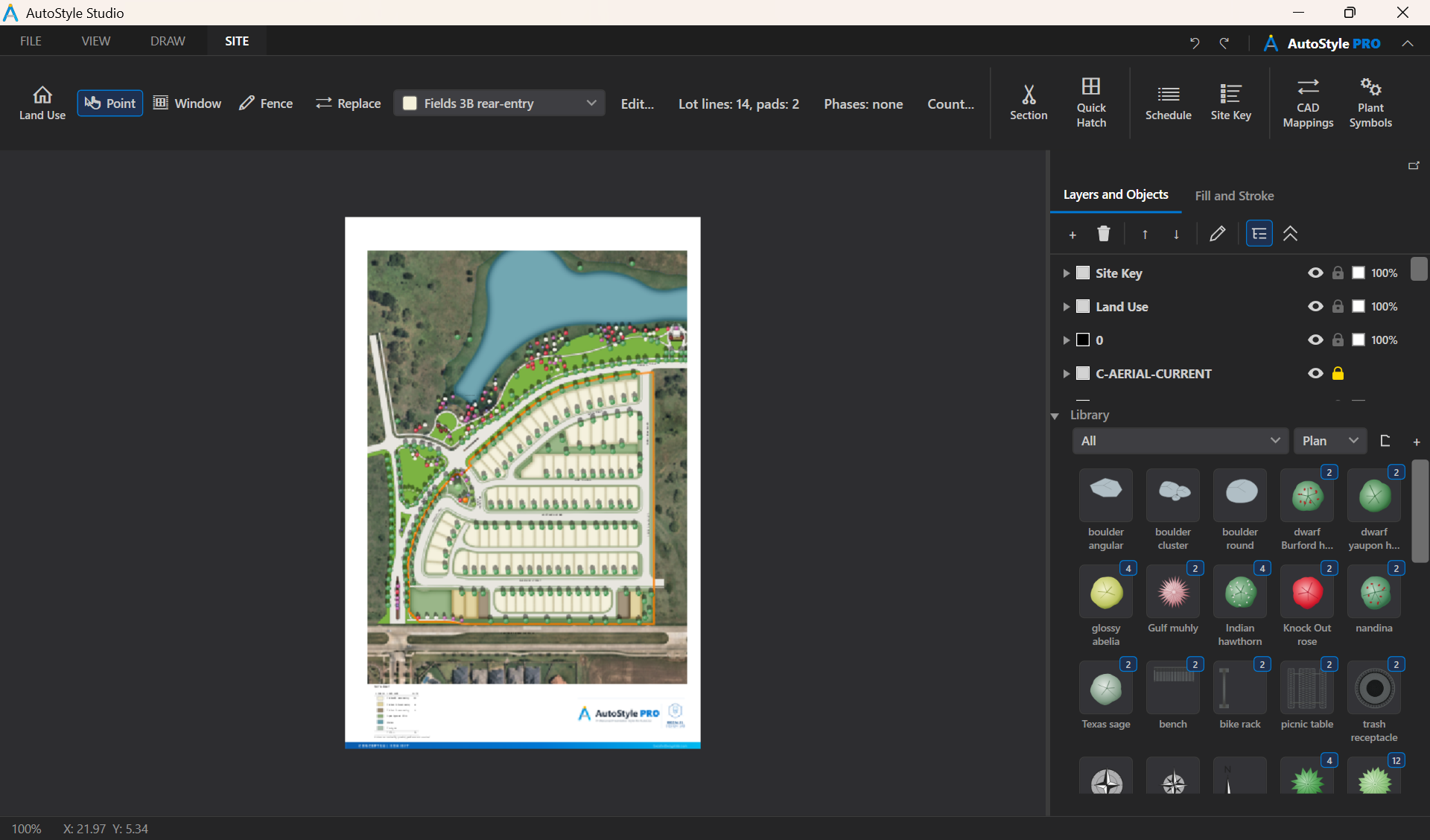
Choose the lot lines first: the Lot lines button on the SITE tab lists the drawing's layers; tick the ones the lot lines are drawn on. The tool then finds a lot from those lines alone, so walks, drives, pads and setback lines on other layers split no lot while every layer stays on screen, and while the tool is armed the chosen linework is drawn over in orange, so a layer missing from the list shows as lines without it.
With none ticked, every visible layer bounds a lot.
The same window has a Pad box for each layer: tick the layers the building pads are drawn on. A closed outline on a pad layer is a pad, never a lot: it is drawn in its product's pad fill and never counted, and it takes its product from the window or click that gives the lots round it, so a plan that keeps every product's pads on one layer still reads right. Both choices are the drawing's, and a recipe carries them.
The Land Uses window
Start the tool from the SITE tab. The first time, the Land Uses window opens: Add Starter List gives three products, open space, water, a civic tract and a floodplain in colours only (rename the products for the project), or Add makes one at a time.
Each row has a name, a kind, a lot fill (a colour, or a material whose look comes from the material table, at an opacity; or None, which leaves the lots as their layer draws them while the use still names and counts them), a pad fill for a lot product's pads (the lot fill unless you set one of their own, or None), a pad height in feet (0 for flat: a pad with a fill and a height stands and casts the look's shadow, whatever its layer's material; a drawing that records no drawing unit keeps its pads flat), its pad blocks and its layers. So one product draws lawn lots with cream pads, or tinted lots with bare pads, as a plan with no pads reads.
Edit... beside the list on the SITE tab opens the window again. A change of fill reaches every area of that use; a renamed use takes its areas with it, and a removed one hands their fill back to the layer. An area the tool made is named for its use in the layer tree, and that name follows when the area changes product or the use is renamed; a name you typed in the tree stays.
The shipped Land plan recipes (FILE > Apply Recipe) bring this starter list with layer styles for the common lot, street, walk, pad and floodplain layer names, the lot lines and the pad layers, so a fresh export is most of the way there in one step: one with the colour on the lots, one (Land plan, pads coloured) with lawn lots and the colour on the pads.
The floodplain first
Give the floodplain its use first. A floodplain line usually crosses lots, and once it carries an overlay use the tool no longer treats it as a lot line, so a lot it crosses is found whole.
An overlay is drawn over every other filled area in its viewport (the lots, the pads, a painted lawn), whatever order CAD drew them in, on opening and after an Update too; what you place later, such as lettering, still goes above it. A pad or a floodplain given a use shows its fill in every look, CAD Line included.
In the looks with shadows a
building stands above everything on the ground: click its outline with Ctrl
held to give the building itself the use.
Give lots a use
Click a lot
Pick a use in the list on the SITE tab, then click inside a lot. The area its lot lines enclose takes the use, found as Paint finds it (rest the pointer to see it first). A closed outline that is exactly that area, such as a lot drawn closed, takes the use itself; otherwise a new area of that outline goes on a Land Use layer, just above a filled area it lies in, under every filled area that lies in it (click the pavement of a street with the shipped recipes' Right-of-way / common use and the whole street network takes it beneath its pavements and walks), or else under the linework. Lots are never joined: two lots of one product side by side stay two lots.
Lot lines drawn as loose lines work as well as closed lots. Ctrl+click gives the
use to the smallest closed outline under the pointer, whatever lines cross it, which is the
way to give a floodplain or an open space drawn as one polyline its use. Each click is one
undo step.
While the tool is armed every lot given a product is tinted in its product's colour, whatever its fill, so you see what is done, and the status bar counts the lots so far by product.
Shift+click takes a lot's use away: an area the tool made is
removed, a closed outline from CAD keeps its lines and goes back to its layer's fill. A lot
drawn closed in CAD and the area traced over it count once; where the two name different
products neither is counted and the count says so.
Window many lots
For many lots at once, drag a window round them. Every area the linework encloses wholly
inside the window shows tinted; one the window cuts, and the streets and ground running out of
it, are left out and counted in the status bar, never half filled. An area that already has
a use keeps it: a window never gives a use over another. Click a tinted area to leave it out
(it shows dashed), click it again to bring it back, then press Enter to give the
rest the use as one undo step, or Esc to drop the window.
With pad layers chosen, the pads wholly inside the window take the product too, as pads, with their lots; a pad the window cuts is left out and counted in the status bar, and a click inside a pad leaves out the pad, not its lot.
On a drawing further along, where walks, drives and houses enclose areas of their own, choose the lot lines first so the window finds lots only.
Point, Window and Fence
The Point, Window and Fence toggles beside the Land Use button set how the tool picks. Point is the click and drag described above.
Window makes a click the window's first corner and the next click its second, so you can pan
or zoom between them (the rectangle follows the pointer; Esc drops the corner);
a drag still windows as before.
Fence picks lots along a line: click points in turn across the lots, and every lot a segment between two points crosses is picked and shows tinted as soon as the point lands, with a dot at each point and a line between them in the use's colour; the line follows the pointer to the next point. A lot's pads come with it, as pads, when their layer is a pad layer; a lot that already has a use is left alone and counted.
Backspace drops the last point (and the lots only its segment crossed);
Enter or a right-click finishes the fence and shows what it found as a window
does, where a click leaves a lot out or brings it back and Backspace takes the
fence up again; a second Enter gives the rest the use as one undo step;
Esc drops the fence.
Each segment searches the linework within 12 in of sheet around it, so a crossed area reaching further, the street network between two blocks say, is left out and counted in the status bar; click it to give it, as a click on the pavement does.
The fence is quickest for a row of lots along a street: one click at each end of the row.
Change a product
To change a product, pick the new one and click the lot; a click changes only what it lands on, so a lot's pad takes a click of its own.
To change many at once, turn on
Replace beside the pick toggles. A window or fence then picks lots that
already have another use too, along with their pads, and the status bar says how many will
change before Enter; click a lot to leave it out. Replace starts off, when a
window or fence leaves those lots alone and counts them. It never swaps a floodplain or other
overlay for a lot's product, or the other way round.
To change every lot of a product, rename it or change its fill in Edit... instead.
Give uses by rule
Pad blocks
Pad blocks name the CAD blocks whose inserts are a product's pads. Every pad of those blocks takes the product when the drawing opens, after an Update too, so a 50' pad and a 60' pad read apart. This needs a drawing exported with this version's CAD plugin, which records which block each exploded insert was; the ... button then lists them.
A pad you give a use by hand keeps it whatever the blocks say, for a block where the product changes partway; it is a pad all the same, never counted. A pad takes a product by rule only, never from the lot it sits in.
A block can be one use's pad block only. A pad takes a use as a closed polyline: a block whose inserts hold none gives no pad, and the status bar and the note on opening name it, so a wrong block or a pad drawn as loose lines never passes as a short count.
Layers
Layers name the CAD layers whose closed outlines take the use by rule,
for an office that draws by layer: a product's layer (LOT-50) gives its pads,
never counted; an overlay's (C-FEMA-100YR) gives the floodplain its tint
without a click, an area's the open space. The rule runs when the drawing opens, after an
Update and after the list changes, so a new export takes the same uses; a layer that
came in through an xref matches by its own name, without the prefix.
An outline you give a use by hand keeps it. A layer can be one use's. A layer named that holds no closed outline is reported on opening and in the status bar, as a block is, so a wrong name or an outline drawn as loose lines never passes unseen.
Where every product's pads share one layer, tick it as a pad layer in the Lot lines window instead and let the window give them their product.
Count the lots
Count... on the SITE tab opens the count as a table: a row a product and a total row, and Copy puts it on the clipboard tab-separated, for a spreadsheet or a CAD table.
For a count by phase, Phases lists the drawing's layers: tick one for each phase, the layer whose closed boundary holds that phase's lots, and type a name for it or keep the layer's. A lot is in the phase whose boundary holds a point inside the lot, so a lot found from shared lot lines needs no layer of its own and a boundary drawn on a layer that is turned off still counts. The table then has a column a phase.
A lot inside no boundary, or inside two where the boundaries overlap, is counted in the total and in a column of its own, never put in a phase on a guess, and the notes under the table say so; a phase whose layer holds no closed outline (a boundary drawn as loose lines) is named there too, since no lot can be in it until it is closed. The phases are the drawing's, and a recipe carries them with the lot lines.
Site Key
Site Key on the SITE tab puts the legend for a land plan on the sheet, as Schedule puts a plant schedule. Click where its top-left corner goes, on clear paper.
The table lists the land uses in the drawing's list that have something drawn in them, in the list's order; a use left off this way comes on by itself once you draw in it, and the shipped recipes keep the right-of-way off, since a plan reads it without a key. Double-click the key to tick any of them back.
Each row has a swatch filled as the use fills its areas (a lot product with a pad fill of its own shows that, since its colour then sits on the pads and the lots are a lawn alike; a use with every fill off shows an empty box) and its name.
Each lot product's row has its lots counted: a column a phase where the drawing names phases, then the lots in no phase and in two or more where any lot is, then the total; a TOTAL row sums the products where two or more are printed. Areas and overlays are named alone, never counted.
The counts are the Count... window's: lots only, pads never, a lot drawn closed and the area traced over it once, and two products on one outline left out and said so in the status bar.
The key goes on a layer named Site Key, in one undo step, on a solid white backdrop, with the title 0.16 in tall and every other line 0.1 in, as the plant schedule is set.
The key counts again after every edit, undo and redo, and when the drawing opens; it rebuilds where it sits only when what it says has changed: a lot given or taken, a use renamed or recoloured, a phase named. Drag any piece to move it all; Explode keeps it as plain text and boxes that no longer count.
Double-click the key to open the Site Key window: every use in the list with its swatch, kind and lots, counted now. Untick a row to leave it off this key and click OK: the key is rebuilt without it, in one undo step, and the row stays off at every recount, the TOTAL row following the rows printed.
A use added later is on the key until you untick it, so nothing new goes missing unseen; Include All ticks every row again. Each key keeps its own choice, so a sheet of one phase can leave the other phases' products off.
Count labels
A leader can carry a lot count in its text, the way an exhibit calls out "211 single family detached lots". Draw the leader as usual, then right-click it and choose Count Lots... (the Leader panel has the same button under Content).
The Count Label window lists the lot products with their lots counted now: tick the ones the number sums, choose every lot or those in one phase, and write the wording with {n} where the number goes; a first wording is read off the leader's text, its number replaced by {n}.
OK puts the number in as one undo step, and the leader counts again after every edit, undo and redo with the Site Key, so a lot given or taken, a product split or a phase redrawn is in the label without retyping. The count is the Count... window's: lots only, never pads.
The number reads ? rather than a smaller number while a product the label names is no longer a lot product in the list or its phase is no longer named, so a renamed-away product is seen, never read as zero lots; renaming a product in the Land Uses window carries the label with it.
Double-click the leader, or edit its Content, to change the wording: the box shows the wording with {n}, and the number is counted again at once. Stop Counting in the window keeps the leader as plain text reading what it reads now.