Land Use Tips
The Land Use tool on the SITE tab has three ways to pick lots and a quick way to correct a pick. Using all of them together is much faster than clicking lots one at a time. The Land Use reference has every detail.
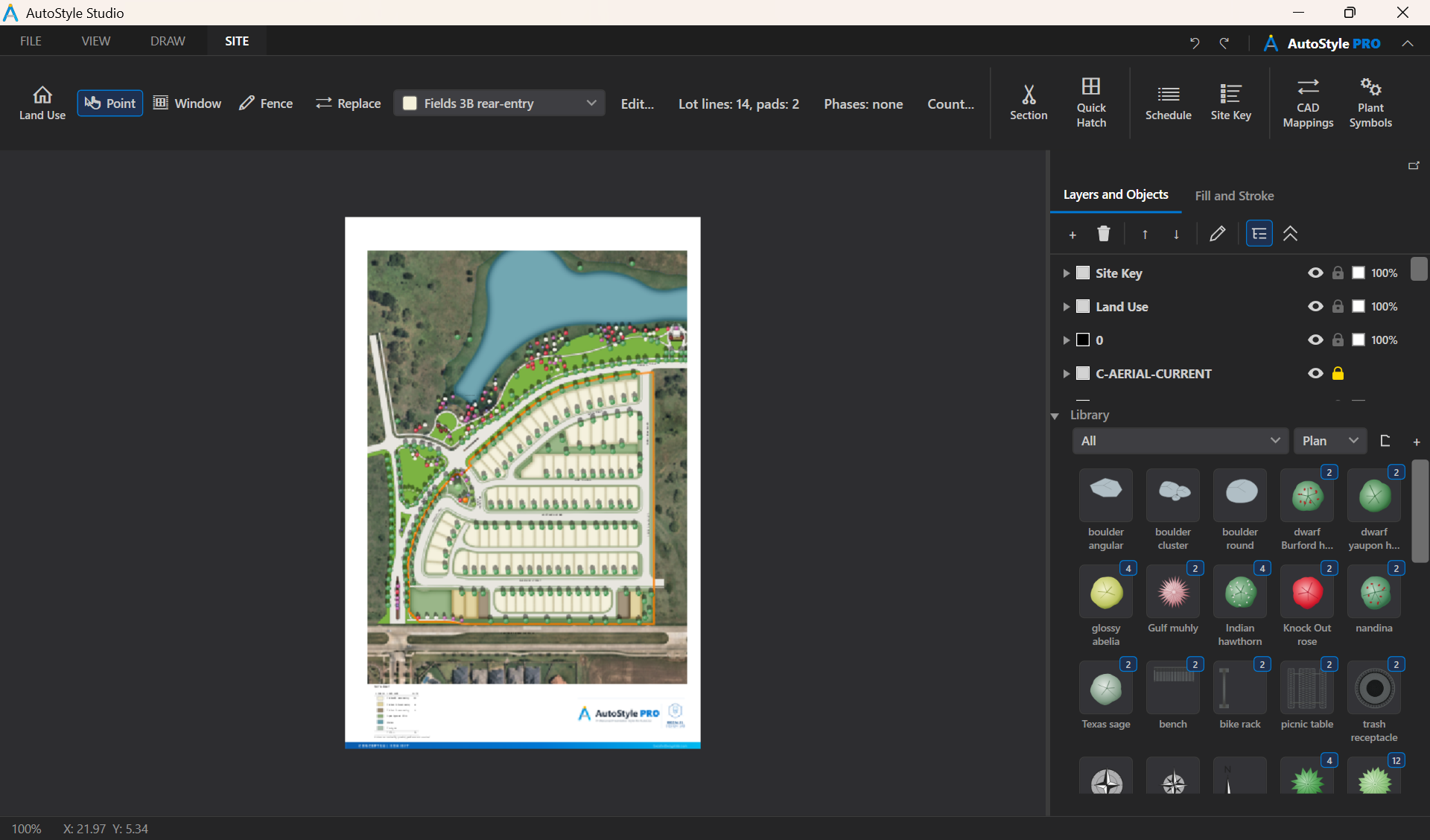
Pick the Tool by How Many Lots
| You want | Use | How | Video |
|---|---|---|---|
| A whole block or the whole site | Window | Click two corners, then Enter. Takes every lot wholly inside. |
1:19 |
| A row of lots along a street | Fence | Click once at each end of the row, then Enter to review and
Enter again to apply. Takes every lot the line crosses. |
1:08 |
| One lot, or a tract | Point | Pick the use in the list and click inside the lot. | 1:33 |
Click a Picked Lot to Leave It Out
A window or fence does not apply right away. It first tints what it found, so you can correct the pick before anything changes.
- Click a tinted lot to leave it out. It shows dashed.
- Click it again to bring it back.
- Press
Enterto give the rest the use, as one undo step, orEscto drop the pick.
So a window can be rough. Draw it round the whole site, click off the few areas that are not
lots of that product, and press Enter. That is far fewer clicks than picking the
right lots one by one.
Set the Odd Lots First
A window or fence never gives a use over another unless Replace is on. Use that: point at the few lots of the minority products and the HOA tracts first, then window the whole site with the main product. The lots already set keep their use, so there is less to click off.
Before You Start
- Choose the lot lines. Tick the lot line layers with the Lot lines button. Walks, drives and setbacks then split no lot. While the tool is armed the chosen linework shows in orange, so a missing layer stands out.
- Give the floodplain its use first. A floodplain line usually crosses lots. Once it carries an overlay use it no longer counts as a lot line, so those lots are found whole.
- Rename the products. Edit... beside the list renames them for the project, and the status bar and Site Key then read in your words.
Correcting Lots
- One wrong lot: pick the right use and click the lot.
- Many wrong lots: turn on Replace, then window or fence them. The
status bar says how many will change before you press
Enter(1:41). - Take a use away:
Shift+click the lot. - Every lot of a product: rename it or change its fill in Edit... rather than touching the lots.
Areas That Are Not Lots
- The streets: with the shipped Land plan recipes, one click of Right-of-way / common in a street gives it the whole street network, laid under the pavements and walks (1:47).
- A floodplain or open space drawn as one polyline:
Ctrl+click gives the use to the smallest closed outline under the pointer, whatever lines cross it. - Moving around during a window: with the Window toggle on, the two corners are separate clicks, so you can pan or zoom between them.
Check the Count
- The status bar counts lots by product as you work.
- Count... opens the table, and Copy puts it on the clipboard for a spreadsheet or a CAD table.
- Site Key puts the legend on the sheet and keeps counting as you edit. Click on clear paper for its top-left corner; double-click it to choose which uses it lists.
- Compare the total with your plan's own lot table before the sheet goes out. A difference means a lot was missed, or that the plan itself disagrees.