Symbol Library
Symbols arrive two ways: recognized from the CAD block names, or dragged in from the library panel. For blocks, see Plants from CAD.
The Library Panel
At the bottom of the Layers and Objects tab, the Library expander lists assets by category. Drag a tile onto the canvas to place it; it lands on the selected layer and takes that layer's styling.
Each symbol is one tile. Everything related to it sits behind that tile: its side and front views, a tree's planted size and fall colour, a vehicle's other paint colours (and the crepe myrtle's white bloom), a shrub's other form (the abelia and the Indian hawthorn sheared to mounds sit behind their natural forms).
A tile with related items carries a small count in its corner; click the count, or right-click the tile, and they open beside it as tiles of their own, each ready to drag onto the canvas. A side or front view dragged from there stands where you drop it, as a Sections symbol always has, and a season, size or colour arrives already set on the placed symbol, as if you had picked it on the Fill and Stroke tab.
A form is a symbol of its own and drops as one: the sheared abelia is the block ABELIA_SHEARED, with its own looks, side view, height and shadow.
The View box beside the category switches every tile at once: Plan shows and places the symbols from above, Side and Front list only the symbols that have that view and place it, which is the quick way to line a section with trees. A side view with no plan symbol of its own (a figure drawn only from ahead) still lists under Sections.
| Category | Contents |
|---|---|
| Trees | Every species is pictured on Plants and Tree Sizes. A drawing, a mapping rule and a recipe keep the library's short key for each (oak, elm, pine, palm), so nothing saved earlier changes. A tree the library has no species for (a pecan, a southern magnolia, a block named only TREE) keeps the linework the plan drew it with (a block the export kept as a symbol shows a placeholder diamond) until you pick one in Plant Symbols. |
| Landscaping | Shrubs and grasses, pictured on Plants and Tree Sizes, and boulders (round, angular and clustered). There is no generic shrub, grass, hedge, ground cover, flower bed or planter. Any other shrub or bed block keeps the linework the plan drew it with (or shows the placeholder diamond, if the export kept it as a symbol) until you pick a symbol in Plant Symbols. Beds and ground cover drawn as areas take the Planting Bed and Groundcover materials. |
| Site | Site furniture, each drawn to the footprint of a real product and rendered from a 3D model of it in the Realistic look, so it is the same size in every look: a 6 ft contoured steel bench, a 6 ft walk-through picnic table, a 36 gal steel-bar trash receptacle and a single inverted-U bike rack, all in black. |
| Vehicles | Plan-view entourage for scale and context. The sedan, SUV, minivan, crew-cab pickup and touring motorcycle are drawn to the published dimensions of current models, mirrors included, the school bus, the tractor-trailer and the box truck to the AASHTO S-BUS-36, WB-67 and SU-40 design vehicles (35.8 ft, 73.5 ft and 39.5 ft long), and the bicycle to the AASHTO design bicyclist (70 in long, 27 in across the bars); each is rendered from a 3D model in the Realistic look, so it is the same size in every look. The sedan, SUV and trucks are white, the minivan silver, the pickup dark blue, the motorcycle black, the bicycle dark grey and the bus school bus yellow. The pickup also comes in white, the minivan in blue, and the sedan and SUV in red: select a placed vehicle and pick its Colour on the Fill and Stroke tab (it applies to every selected vehicle and is this drawing's choice; the hand-drawn looks draw the vehicle in their own ink either way). A block named WB-67 or SU-40, or in plain words (tractor trailer, semi truck, box truck, delivery truck), becomes one of the two trucks; a block named only TRUCK becomes the pickup. |
| Side and front views | Side views for sections and elevations: the trees and shrubs, the site furniture and the vehicles. Each vehicle also has a front view. They are not a category of their own: each sits behind its plan symbol's tile and comes up with the View box. In your own or the office library they go in a Sections folder, named after the plan symbol with _side or _front. |
| Symbols | North arrows and general plan symbols. |
| Style Presets | Not assets, but your saved style presets. |
Symbols and Looks
Trees and planting symbols are drawn in several families (realistic, sketch, marker, pencil, watercolor and flat) and the document look chooses which. A block placed as an oak stays an oak; only the artwork changes when you switch looks. The library tiles preview the current look's family, so what you drag in matches what is already on the sheet. Symbols with no variant in the current family fall back to another rather than vanishing.
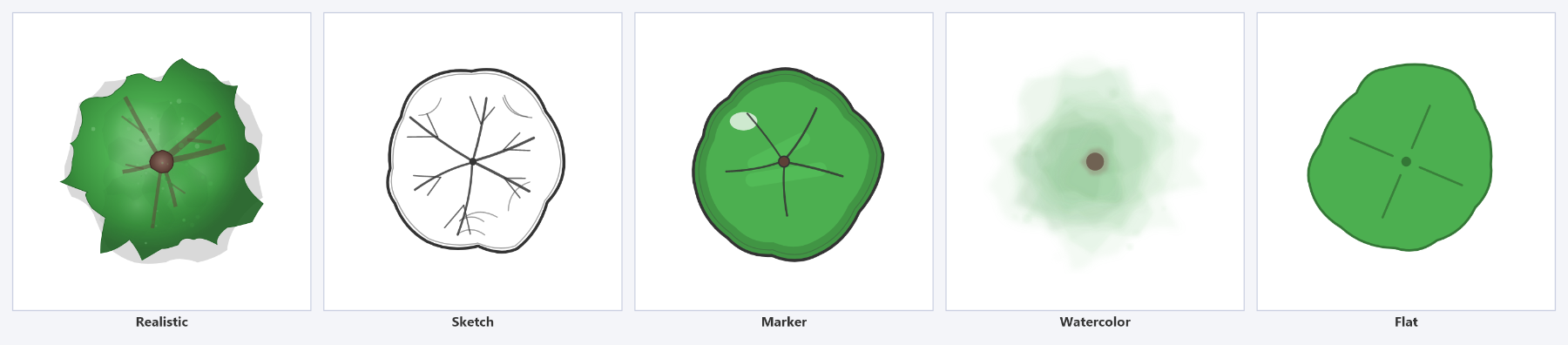
Coloring follows the same logic. Family variants and multi-color symbols keep their own palettes; monochrome line art, such as the north arrows, takes the layer color so it can be tuned to the sheet.
Where a drop lands
Where a drop lands matters on a drawing exported from a layout. Dropped inside a viewport, a symbol or picture joins that viewport: it is clipped at the viewport's edge, goes on top of the plan's draw order, and a tree or a bench stands in the sun with the plan's own.
It also lands at its true size through that viewport's scale: a sedan 16 ft long, a bus 36 ft, a mature live oak at the spread it was rendered at, because every rendered symbol's art states its size in feet. That needs the drawing's unit, which the CAD export records; without it, or for a symbol whose art states no size, the drop takes a starting size and the status bar says why, so you scale it to fit.
A symbol dropped at its true size is at the library's size, so a swap, a tree size or a season chosen later gives it the new art's size; one dropped at the starting size keeps the size you scale it to.
Dropped on the sheet outside every viewport, it belongs to the sheet with the legend and the title block, which cast no sun shadows, and it takes the starting size; the status bar says so, and a shadow set on its style still draws. A drawing built in the Studio has no viewports, so everything is on its plan at the starting size.
Side Views for Sections and Elevations
A side view is a symbol seen from the side (or, for the vehicles, from ahead): set the View box in the Library panel to Side or Front, or open it from its plan symbol's tile. Where you drop it is its foot, the point where the trunk meets the ground, so set the drop on your ground line. It turns and scales about that foot and stays standing on the line, and it never casts a sun shadow, since it is a picture of the plant rather than the plant on the plan.
Dropped inside a viewport, a side view lands at its real height through that viewport's scale: a 55 ft cedar elm stands 2.75 inches tall at 1"=20'. That needs the drawing's unit, which the CAD export records (an export from an older plugin does not, so export again). Dropped anywhere else, it starts at a size of its own. The status bar says which happened. Either way it is a starting point; drag a corner to size it as you like. A section drawn with a vertical exaggeration needs that scaling by hand.
A side view is rendered, so it has no hand-drawn families of its own. In the Realistic look (and CAD Line) it is the render; in Illustrative, Marker, Watercolor and Colored Pencil it is the same render put through that look's colour treatment, so its colour follows the realistic view: flat colour regions for Illustrative, fewer and stronger colours for Marker, a lighter wash for Watercolor, softer and paler for Colored Pencil. Ink Sketch is black ink, so it keeps the plain silhouette. A layer set to render as plain CAD draws the silhouette in every look.
Mirror, on the TRANSFORM tab while a side view is selected, flips it left for right about its foot, so a row of the same tree does not repeat itself. The light in the picture flips with it. Realistic and CAD Line draw the rendered plant; the hand looks draw its silhouette in the layer color. For the faded trees of a street section, place copies on a gray layer with a low opacity and send that layer back.
Draw as, in the properties panel while a side view is selected, chooses between the rendered picture and the plant's flat silhouette. Rendered is the picture above, treated by the look. Silhouette draws the library's traced outline of the same plant in black in every look, the Realistic look included, as a section drawing shows a tree; it fades with the layer's fill opacity, so a row of background trees on a layer at a low opacity reads gray. It applies to every selected side view, is one undo step, and is kept with the drawing. The Section tool's window has the same choice for every plant it stands behind the cut (see Section), and Quick Properties shows it as Silhouette.
Swapping a Placed Symbol
A symbol already on the sheet can be changed for another library symbol without placing it again. Right-click it on the canvas, or its row in the scene tree, and choose Swap Symbol... to swap it (with every other selected symbol of the same kind), or Swap All Matching on Layer... to swap every symbol on its layer that is the same block in the same size, season and colour: every cedar elm on the planting layer becomes a Shumard oak in one step.
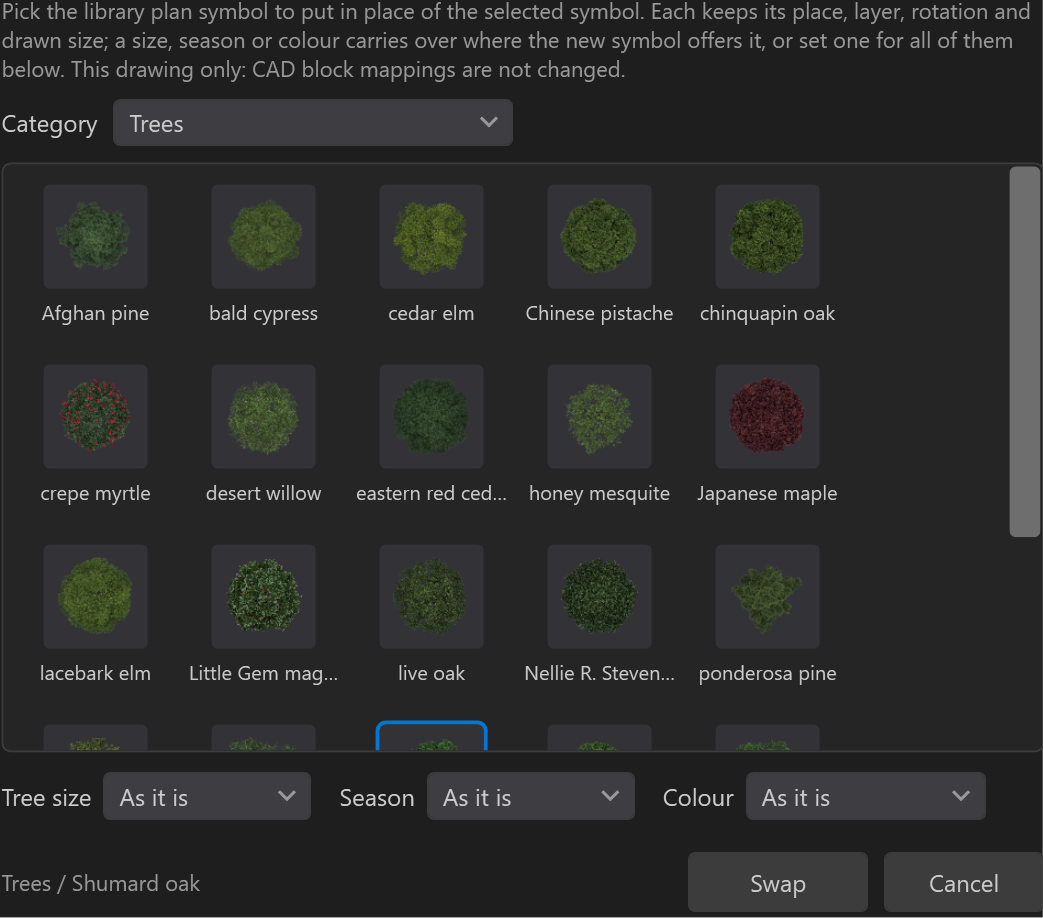
The picker shows the library in the symbol's own view: plan symbols for a plan symbol, side views for a side view, front views for a front view.
Pick a tile and choose Swap. Each symbol keeps its place, layer, rotation, mirror, draw order and style overrides. A plan symbol at the library's size takes the new symbol's library size; one drawn at its size in CAD or at a size in feet keeps that size, as does one from a drawing styled before sizes were recorded. A side view keeps its height whatever the proportions of the new art. A fall colour or a planted size carries over where the new species offers it; otherwise the symbol goes back to Summer or Mature, and the status bar says so. A planted target takes its planted size through the viewport, as the Tree size picker gives it. A vehicle keeps its paint colour where the new vehicle is rendered in it.
To set these for every swapped symbol instead, use the Tree size, Season and Colour boxes under the tiles: they fill with what the picked symbol offers (Planted, Medium, Fall, Bloom, the colours a vehicle is rendered in) once a tile is picked, and each starts at As it is, which carries over what each symbol has. A box with nothing more to offer stays grey. With Swap All Matching on Layer, the size, season and colour chosen here are what the block's rule remembers. Each swap is one undo step.
Swap Symbol changes this drawing only. Swap All Matching on Layer is a choice for the block as a whole: where the symbols came from a CAD block, the new symbol and its tree size, season, colour and size are remembered as that block's rule in CAD Mappings, and the status bar says so. The next drawing with the block comes in the same way. A symbol placed from the library has no CAD block name to remember.
A swapped plant takes the name of what it now draws, so the Plant Schedule counts it as that plant. A plant of your own keeps its name when you swap it to the symbol that stands in for it. A symbol placed from the library with no name stays unnamed, since the schedule counts it by its art. A drawing saved before this keeps the names its symbols had.
A symbol from CAD keeps its block's name whatever it is swapped to, or replaced with in Plant Symbols. Plant Symbols still lists it under that name, Swap All Matching remembers the choice by it, and an Update from CAD keeps the new symbol for as long as the insert stays on that block. If the drafter puts the insert on another block in CAD, CAD wins: when the drawing next opens, the symbol goes over to that block as a swap goes (at the library's size it takes the new block's size; at its size in CAD or a size in feet it keeps that size), and the Symbols from CAD report lists it. Studio 1.2.15 and earlier kept no record of a swapped symbol's block, so the first Update of a drawing swapped there still puts the block's own symbol back.
Your Own Library and the Office Library
Besides the symbols installed with AutoStyle Pro, the library reads two folders of your own.
My Library is yours alone, in %APPDATA%\AutoStylePro\Library.
The Office Library is a folder the whole office shares, on a network drive
for instance, and AutoStyle Pro only ever reads it. Inside either one, each folder is a
category holding SVG symbols and PNG or JPEG pictures. A folder named like an installed
category (Vehicles, Trees) adds to that category; any other name becomes a category of its own.
The folder button beside the category list opens My Library in Explorer, sets the Office Library folder or stops using it, and refreshes the library after you add files by hand. The + button copies files into My Library under the category the list shows (while it shows All, SVG files go to Symbols and pictures to Images). A tile's tooltip says which library it comes from.
- Pictures (PNG, JPEG) drop as images and are embedded in the
.asp, so they travel with it. A PNG with a transparent background is how cut-out entourage arrives: trees, people and cars for sections and elevations. - SVG symbols drawn as shapes stay sharp at any size and export resolution; one that carries a picture is as sharp as its picture. A drawing saves a copy of each one it uses from My Library or the Office Library, so it still draws on a computer that has neither. Where a library has the symbol, the library's file draws it, so when the office updates a symbol, every drawing shows the update.
- Names. An installed symbol keeps its name. A file of yours with the same
name, or named like an installed symbol (
oak.svg), is not offered, and an import tells you so. Where My Library and the Office Library share a name, My Library's file draws. A file named exactly like a CAD block draws that block. - Looks. A file ending in
_sketch,_marker,_pencil,_watercolor,_flator_realisticbeside a file of the same name without the ending is that symbol's drawing for the matching look. Without the plain file beside it, the ending is just part of the name. - Shadows. Symbols in folders named Trees, Landscaping, Site, Furniture,
People or Vehicles stand up and cast shadows in the looks that draw them, as the installed
ones do. Section entourage of your own belongs in a folder named Sections: it then works
as a side view, standing on the middle of its bottom edge, with
Mirror and no shadow. It drops at a starting size unless its root element states the
plant's height, as in
<svg data-height-ft="25" ...>. A plan symbol of your own likewise drops at its true size inside a viewport when its root element states how many feet its longer side spans, as in<svg data-frame-ft="16" ...>. - Monochrome SVGs take the layer color, which suits silhouettes: a black figure on a gray layer reads as a figure in the distance. An SVG that carries a picture keeps the picture's colors.
An Office Library on a network drive that cannot be reached is skipped, and the folder menu marks it as not reachable. Drawings keep drawing their saved copies until it comes back.
When the Library Updates
A new version of AutoStyle Pro may redraw an installed symbol or a texture tile, or change the built-in material table. A drawing you issued should not change on its own when it is opened in that version, so every save records which revision of each symbol and tile the drawing draws with, and the material table as the version that saved it shipped it. When a later version ships something different, the drawing is held: a Library: held at 1.2.3 chip appears in the status bar and nothing is changed for you. A drawing saved before this record existed is held on the same terms when a layer or object is still filled with a colour its material no longer takes: that colour says which table coloured it. Hover the chip for the list, and click it for the choice:
- Update Library records the current symbols, tiles and material table for this drawing. A layer or object still filled with the colour its material had in the version that saved the drawing takes the material's current colour (your own table's first); a colour you picked yourself stays, and the dialog says how many will move. It is one undo step, so you can compare and go back.
- Keep leaves the drawing held. It stays held through every save until you update it.
What is held is what the drawing recorded. The material table it was saved with keeps applying to it (your own material table, set in the Materials dialog, still comes first). Every version of AutoStyle Pro ships the symbol and tile art of the versions before it, so a held symbol or tile draws with the art the drawing was saved with, exactly as it was issued. Only art this install does not carry draws with the current art, and a symbol that no longer ships draws as nothing; the chip's text names each case. A drawing saved by the CAD plugin or by a version before 1.2.4 carries no record and draws with the current library; its first save in the Studio records it.
Placing planting that reads
- Let auto-mapping place the trees from the block names first. They land at the right coordinates and the right sizes.
- Fill in by hand from the library only where the CAD plan has no blocks.
- Keep tree canopies on their own layer so shadows and depth can be tuned without affecting the hardscape.
- Add people and vehicles sparingly; two or three give scale, a crowd competes with the plan.