Compliance Checking
HydraStorm continuously checks every pipe against the design criteria you've configured in Project Settings. Results are summarized in the Compliance column of the results grid, on the Compliance sheet of the Excel export, and on the drafted CAD schedules.
Criteria Checked
| Criterion | Source Setting | Pass Condition |
|---|---|---|
| Min Velocity | Min Velocity (fps) | Full-flow (Manning's) velocity Vf ≥ minimum |
| Max Velocity | Max Velocity (fps) | Q ÷ full-barrel area (Q/Afull) ≤ maximum |
| Min Slope | Minimum Pipe Slope | Pipe slope ≥ minimum, resolved per pipe size under the project's Min Slope Basis |
| Min Pipe Cover | Minimum Pipe Cover (ft) | Ground − pipe crown ≥ minimum (waived over an outfall pipe's daylight reach, if it has one) |
| Max Pipe Cover | Maximum Pipe Cover (ft) | Ground − pipe crown ≤ maximum |
| HGL Cover | HGL Cover (ft) | Ground − HGL ≥ required cover |
Each pipe receives a per-criterion Pass / Fail / N/A status. N/A applies when the criterion doesn't apply to that pipe: pipe cover when no ground elevation is available at either end, HGL cover on a dry pipe (nothing was computed to grade against ground) or with no ground elevation, and Min Slope on an adverse or zero-slope pipe (that's a calculation error, not a compliance question).
Note: Min and Max Velocity are judged on two different bases, matching the engineer's vocabulary for each purpose. Min Velocity is a self-cleaning check, so it's judged on the full-flow (Manning's normal-depth) velocity Vf, a slope-and-size property independent of how much flow is actually in the pipe today. Max Velocity is an erosion/energy check, so it's judged on Q/Afull, the same velocity basis junction losses use and the true velocity in a surcharged pipe. A steep pipe carrying a small flow can pass Max Velocity even though it would erode if it ever ran full; a large pipe carrying a small flow can fail Min Velocity even though it's well above the limit once flowing full. An outfall is where that matters most: when the water leaves an outfall pipe faster than Max Velocity, an informational message names the pipe and the velocity it discharges at, so you can size the outlet protection. It never fails the pipe and has no setting of its own; it appears whenever the Max Velocity check is on.
Note: An outfall pipe cut to grade at a headwall daylights by design over the first stretch off the outfall. The surface meets the barrel there, and no grade could hold cover on that reach. HydraStorm recognizes that condition and excludes it from the Min Pipe Cover check rather than failing a pipe that was never buried in the first place; a calculation message reports the reach as information (or, if it runs unusually long for the barrel, as a warning worth checking against the reference surface). Cover is judged normally everywhere else on the pipe, including the rest of that same outfall run once it clears the cut. See Auto Design's grade policy for how this reach is identified.
Status in the Results Grid
The Compliance column shows P/N where P is the count of passing criteria and N is the count of applicable criteria. 5/5 means full compliance; 3/5 indicates two failures. When one or more failures are acknowledged, the summary appends the count, e.g. 5/6 (1 ack). Hover for a tooltip listing the failing criteria. This grid column, the Excel Compliance sheet, and the CAD schedules are the only places compliance status is reported; the profile view itself carries no compliance markers.

Excel Compliance Sheet
The export bundles a Compliance sheet with two tables:
- Per-criterion summary: total passes, failures, N/A across the whole network
- Per-pipe detail: one row per pipe per failing criterion with the actual vs required value
This is the sheet to attach to AHJ submission packages: it self-documents the design's adherence to your selected design standard.
Configuring Criteria
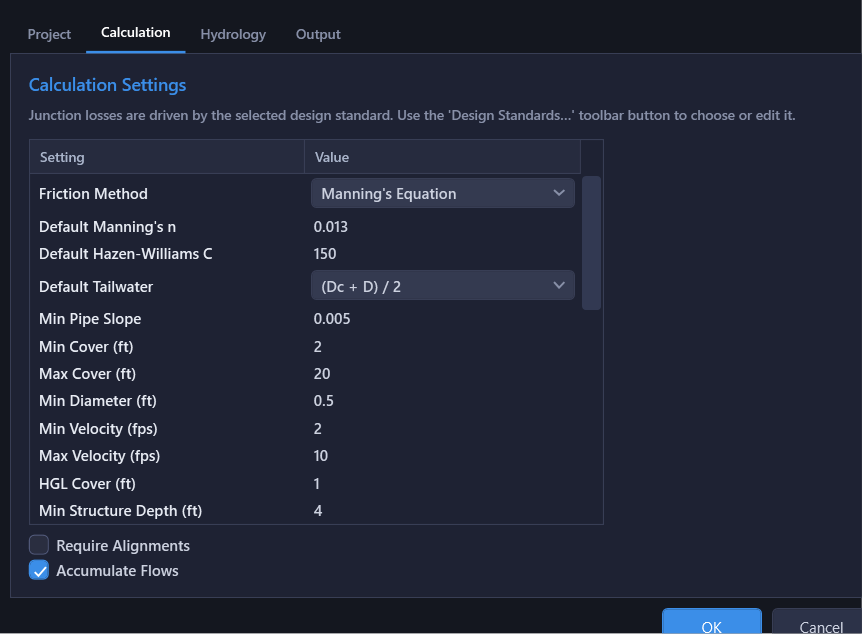
All criteria values come from Project Settings. When a design standard is applied to a project, HydraStorm prompts you with a checklist of values that differ from the standard's published criteria; accept the suggestions to align with the municipality's published values.
Tip: The check storm is judged against its own HGL cover requirement, separate from the design storm's HGL Cover (ft) setting. It defaults to 0.0 (no minimum freeboard required at the check storm), and if a design standard's published criteria specifies a check-storm value, applying that standard sets it for you through the design-criteria adoption checklist. Many jurisdictions allow HGL at ground for the check storm but require freeboard for the design storm.
Disabling Individual Checks
Project Settings → Storm Drain lists a per-project Check: ... toggle for each of the criteria above (Min Velocity, Max Velocity, HGL Cover, Min Slope, Min Pipe Cover, Max Pipe Cover), each set to Enabled or Disabled. Disabling a check removes it from the Comply column and the compliance count entirely: it isn't just hidden, it's not evaluated, so it also drops out of the Excel Compliance sheet.
Use a network-wide disable for a criterion your jurisdiction genuinely doesn't enforce (e.g., no minimum velocity requirement). For a one-off accepted violation on a specific pipe, prefer acknowledging the individual failure instead (below): disabling the whole check network-wide would hide real violations elsewhere in the network, while acknowledging keeps the audit trail on just that pipe.
Acknowledged Failures
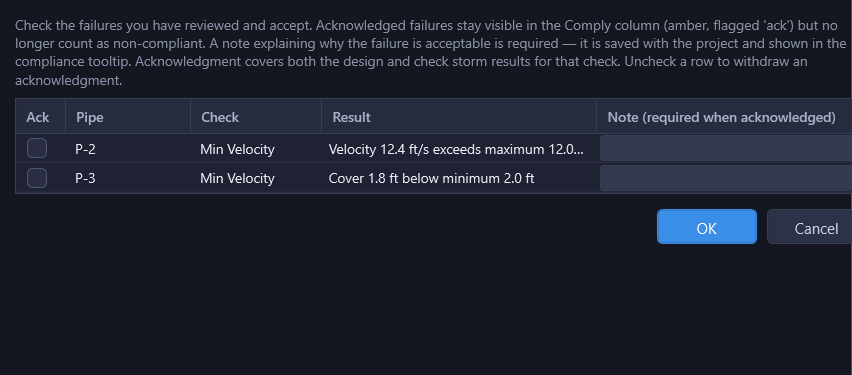
Sometimes a failure is acceptable (e.g., an outfall pipe that intentionally exceeds max velocity into a stilling basin). Right-click a pipe with a failing check (in the profile view or the results grid) and choose Acknowledge Check Failures... to open a dialog listing every failing check for the pipe. Check the ones you've reviewed and accept, and enter a note explaining why the failure is acceptable. Clicking OK with a checked row that has no note blocks the dialog and lists which rows still need one; once accepted, the note is saved with the project and shown in the compliance tooltip. Uncheck a row to withdraw an acknowledgment.
An acknowledged failure still shows as a failure in the Comply column, but colored amber rather than red, and it no longer counts as non-compliant in summary counts. A pipe with only acknowledged failures (no unacknowledged ones) shows amber; any remaining unacknowledged failure keeps the row red. Acknowledgment applies to both the design and check storm results for that check.