Pipe Editing
HydraStorm provides several ways to edit pipe geometry and properties, from single-pipe adjustments to multi-pipe operations that set continuous slopes across an entire alignment run. All edits update the profile view and hydraulic results in real time, giving you immediate feedback on the impact of your changes.
Editable Properties
Select a pipe by clicking it in the profile view or by clicking its row in the results grid. The following properties are directly editable in the results grid or property panel.
| Property | Description |
|---|---|
| Inv US | Upstream invert elevation (ft). Edit directly and the profile updates live. |
| Inv DS | Downstream invert elevation (ft). Edit directly and the profile updates live. |
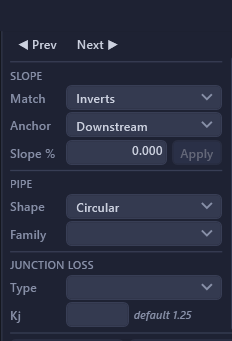
| Slope % | Pipe slope as a percentage. When you edit slope, HydraStorm holds the downstream invert fixed and recomputes the upstream invert. |
| Shape | Circular or box. Switching to Box enables the Span column below; applying the change swaps the pipe to a matching part family in Civil 3D. |
| Span | Box pipes only (blank for circular): the inside width (ft), picked from the catalog's available spans. Changing the span snaps the rise to the nearest available value for that span. |
| Size | Dropdown of available sizes from the active part family. Only sizes present in the Civil 3D parts list for that pipe's part family are shown. For circular pipes, this is the diameter in inches; for box pipes, it's the rise in feet at the current span. Where no box part family is loaded in the drawing, Span and Size accept a typed dimension instead of a catalog pick. |
| Part Family | Change the pipe material and type (e.g., RCP, HDPE, CMP). Changing the part family updates the available sizes in the Size dropdown. |
| Manning's n | Friction coefficient for the pipe. Defaults to the project-wide value, but can be overridden per pipe. |
| Q (local flow) | Local design flow (cfs) at the upstream node of this pipe. Leave blank or set to 0 for nodes with no local inflow. This column is an editable input only when the project accumulates entered peak flows directly; once the rational method is accumulating (Manual mode, or HydraLink linked on basin parameters), Q is computed from area × C × intensity instead and this column is hidden in favor of the C / Area / Tc columns. |
Pipe Sizes from the Parts List
The available pipe sizes in HydraStorm come directly from the Civil 3D parts list assigned to your pipe network. If your parts list includes 18", 24", 30", and 36" RCP, those are the only sizes in the dropdown. This ensures every size you select in HydraStorm can be written back to Civil 3D. To add more sizes, update the parts list in your Civil 3D drawing.
Raise / Lower
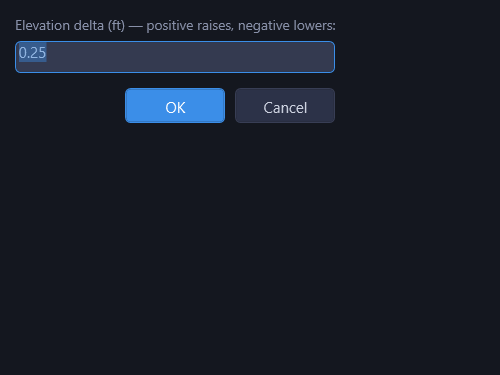
Raise/Lower shifts both endpoints of the selected pipe(s) by a uniform vertical offset. Enter a positive value to raise or a negative value to lower. This adjusts depth without changing slope.
- Works on a single selected pipe or multiple selected pipes simultaneously.
- Both the upstream and downstream inverts are adjusted by the same amount.
- The pipe slope remains unchanged because both endpoints move equally.
Access via the right-click context menu or Ctrl+Shift+R.
Set Slope
Set Slope applies a specific slope percentage to the selected pipe(s). Choose which end to anchor:

- Anchor Downstream: Holds the downstream invert fixed and recomputes the upstream invert.
- Anchor Upstream: Holds the upstream invert fixed and recomputes the downstream invert.
Access via the right-click context menu or Ctrl+Shift+L.
Match to Adjacent
The Match to Adjacent commands align a pipe's endpoint to the neighboring pipe's geometry at the shared junction. Right-click a pipe and choose from the Match to Adjacent submenu:

| Command | Description |
|---|---|
| Invert DS | Sets the selected pipe's downstream invert to match the downstream neighbor's invert at the shared junction. |
| Invert US | Sets the selected pipe's upstream invert to match the upstream neighbor's invert at the shared junction. |
| Crown DS | Adjusts the downstream invert so the pipe's crown matches the downstream neighbor's crown. Prevents surcharging at size transitions. |
| Crown US | Adjusts the upstream invert so the pipe's crown matches the upstream neighbor's crown. |
| Centerline DS | Adjusts the downstream invert so the pipe's centerline matches the downstream neighbor's centerline. Accounts for diameter differences. |
| Centerline US | Adjusts the upstream invert so the pipe's centerline matches the upstream neighbor's centerline. |
These are especially useful after changing pipe sizes: matching crowns or centerlines adjusts the invert to maintain a smooth transition at size changes.
Multi-Pipe Editing
Select contiguous pipes in the results grid or profile view with Shift+Click: click one pipe, then Shift+Click another to fill the whole span between them. When multiple pipes are selected, additional editing operations become available for setting continuous slopes across the entire selection.
Match Criterion
The Match Criterion dropdown controls how junction transitions are handled when applying a continuous slope across multiple pipes:
- Inverts: Applies a fixed structure drop (from Project Settings) between each pair of connected pipes. The invert line follows a constant slope with a uniform drop at each junction.
- Centerlines: Aligns pipe centerlines along a constant slope. Invert elevations adjust automatically to account for size differences between pipes. The transition at each junction equals half the rise difference between connected pipes.
- Crowns: Aligns pipe crowns along a constant slope. Invert elevations adjust so the top-of-pipe line is smooth across size transitions. The transition at each junction equals the full rise difference between connected pipes.
Note: At a wye (a null structure, auto-joint, or fitting-keyword part with two pipes in and one out), this dropdown is overridden for the wye itself when Lateral Match at Wyes (Project Settings > Storm Drain) is set to anything other than Same as network: the trunk always holds invert continuity there regardless of this selection, and the lateral is matched by that setting instead. Every other junction in the selection still follows the criterion chosen here. See Wyes and the Lateral Match Rule.
Anchor Point
The Anchor dropdown controls which end of the selection is held fixed:
- Downstream: Holds the outfall end fixed and adjusts inverts working upstream. This is the most common setting: you fix the outfall invert and let the upstream inverts follow.
- Upstream: Holds the headwater end fixed and adjusts inverts working downstream.
Multi-Match (Match Slope)
Match Slope (Ctrl+M) computes a continuous slope across the entire selection. It interpolates intermediate junction inverts using the selected match criterion and anchor point to produce a uniform grade from one end to the other.

Multi-Pipe Raise/Lower
Raise/Lower applies uniformly to all selected pipes. Every upstream and downstream invert in the selection is shifted by the same amount.
Context Menu
Right-click a pipe in the profile view or results grid for quick access to editing commands:
- Match Slope: Apply continuous slope across selection
- Set Slope...: Set a specific slope with anchor selection
- Raise/Lower...: Shift inverts by a uniform offset
- Match to Adjacent: Submenu with Invert/Crown/Centerline DS/US
- Reset HGL to Calculated: Clear any manual HGL override on the selected boundary
Grid Navigation
The results grid supports Excel-like keyboard navigation for fast data entry:
| Key | Action |
|---|---|
| Tab | Move to the next editable cell (wraps to next row) |
| Shift+Tab | Move to the previous editable cell |
| Enter | Stay in the same column, move to the next row within the alignment |
| F2 | Enter edit mode on the current cell |
| Left / Right Arrow | Select previous / next pipe in the alignment |
Undo / Redo
Every edit is tracked in the undo history:
- Ctrl+Z: Undo the last change
- Ctrl+Y (or Ctrl+Shift+Z): Redo the last undone change
The undo stack covers all property changes including invert elevations, pipe sizes, Manning's n overrides, flow entries, and loss type assignments.
Note: Changes you make in HydraStorm are not written to Civil 3D until you click Apply to C3D. Use Discard to revert all changes since the last Apply.