Minor Losses Table
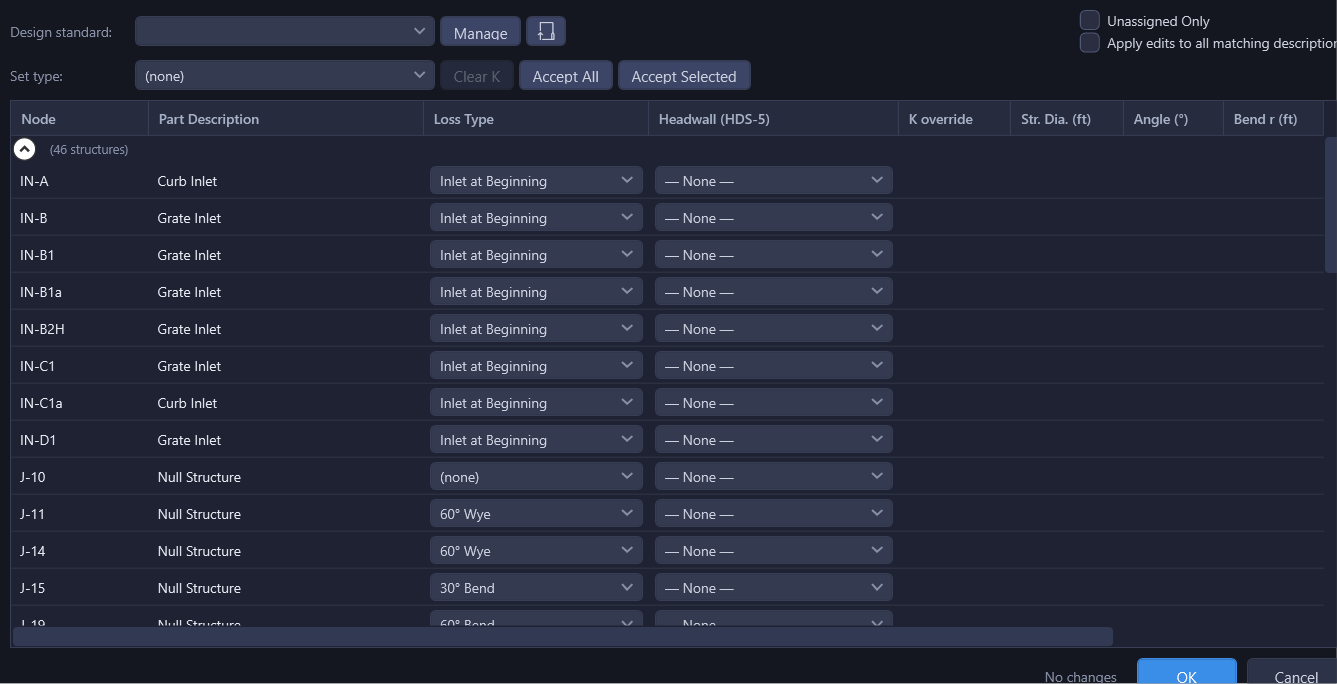
The Minor Losses dialog provides bulk assignment of junction loss types, Kj overrides, and structure/deflection parameters across the entire network, and reviews/accepts HydraStorm's loss-type suggestions.
Opening the Minor Losses Table
Open it from Tables menu > Minor Losses....
Plan Preview
A plan view of your actual drawing sits at the top right of the dialog. Select a structure in the grid and the preview shows the real Civil 3D drawing around it: surface, curb returns, right-of-way, labels, everything the drawing carries. It answers the question the Node column cannot: is this the inlet I think it is?
It is a confirmation instrument, not a navigator. It reflects what you select and never changes the selection, and it never touches your Civil 3D viewport: nothing zooms, regenerates, or gets deselected behind you while you work.
- Scale. Opens at 1" = 10', which puts about 30 feet of ground in the frame, close enough that the selected structure sits alone in it. That is the point: you tell an inlet from a wye from a manhole by its own plan symbol, so neighbouring structures in the shot only get in the way. The scale then holds as you move down the grid, so successive structures stay the same size on screen and stay comparable. Pick another scale from the dropdown at any time.
- Fit. Zooms out far enough to show the structure together with the pipes running into and out of it, then snaps to the nearest standard engineering scale, so the readout always names a scale you would actually plot at, never an arbitrary number.
- One structure at a time. Select several rows for a bulk edit and the preview clears rather than picking one of them arbitrarily.
The structure's name always appears above the picture, so a preview can never quietly show you the wrong inlet.
Model space only. The preview draws from the model view. On a paper-space layout tab it says so and shows nothing rather than presenting a sheet view under a "1 inch = 10 feet" label. A structure that carries no drawing location shows the same note.
Design Standard Selector
A Design standard dropdown at the top of the dialog picks the active design standard (junction loss library) for the project. Switching it rematches every structure against the new standard's loss types. Click Manage to open the Design Standards Manager to browse, edit, copy, or create standards. A folder icon button next to it lets you point HydraStorm at a shared library folder (e.g. a network drive) for user-defined design standards and inlet libraries; right-click it to clear the setting.
Columns
The main grid is grouped by alignment and contains the following columns:
| Column | Description |
|---|---|
| Node | Structure name (read-only) |
| Part Description | Civil 3D part description (read-only), helps identify the structure type |
| Loss Type | Dropdown picker showing available types from the active design standard |
| Headwall (HDS-5) | Dropdown to assign an FHWA HDS-5 headwall entrance type. Only active at upstream-most structures (no incoming pipes); options are filtered by the outlet pipe's shape (circular vs. box). |
| Resolved K | The computed junction loss coefficient after applying the assigned type/expression and any override (read-only) |
| K override | Manual coefficient value; leave empty to use the loss type's default K |
| Angle (°) | Editable trunk deflection between the dominant inlet and the outlet, for bends/manholes, typed as deflection from straight: 45 for a 45° bend (see Angle Convention below). Turns orange when the assigned loss type's loss depends on this angle, such as a bend or a manhole entry rated on a direction-change table, and nothing has been entered: a blank bend is an unconfirmed bend, even though the plan-measured angle would be used at calc time. |
| Lateral Angle (°) | Editable lateral approach angle between a lateral (wye) inflow and the outlet, typed as deflection from aligned: 45 for a 45° wye. Blank falls back to plan geometry (90° when no geometry is available). Turns orange when the assigned loss type reads the lateral angle and nothing has been entered. |
| Angle Suggestion | Badge offering a manufactured-angle snap when the structure's plan geometry lands within 5° of a pre-manufactured fitting class for the row's loss type category (bends and wyes: 22.5/30/45/60°; manholes add 90°). Click to write the value into Angle or Lateral Angle, whichever the category targets. Visible only while a suggestion is pending, and never applied on its own. See Angle Convention. |
| Plan Angle (°) | Read-only. The deflection angle(s) measured from the structure's actual plan geometry, one per incoming pipe against the outlet, trunk first, as deflection from straight (0° = straight through). Hover for a tooltip naming each pipe. Purely informational; it never writes to the editable Angle column next to it. |
| Str. Dia. (ft) | Structure diameter override, used by loss expressions that reference structure geometry |
| Bend r (ft) | Bend radius override, used by radius-sensitive bend loss expressions |
| Suggestion | Badge showing a pending auto-match suggestion for this row's Loss Type, if any (see Suggestions below) |
Angle Convention
Every angle you see or type in this table (Angle, Lateral Angle, Plan Angle, and the Angle Suggestion badge) is the deflection from straight, the way a fitting is named: 0° is straight through, a "45° bend" is entered as 45, and a "45° wye" is 45 on the Lateral Angle field, leaving the trunk untouched. Loss library expressions keep the HEC-22 theta / theta_l convention (180° = straight, 90° = a right angle); the table converts for you, so nothing in a library or an existing project changes.
Two automatic sources feed these fields, and they behave differently:
- Part description, at import. When a structure's Angle and Lateral Angle are both still blank and its Civil 3D part description names a standard fitting angle (a "45 Degree Bend", say), HydraStorm fills it in: a wye or lateral description fills Lateral Angle, anything else fills Angle. This happens automatically rather than as a suggestion, because it only ever fills fields you haven't touched.
- CAD geometry, always suggested. The read-only Plan Angle column is measured from the structure's actual pipe geometry every time and never writes anywhere by itself. When that measured angle falls within 5° of a pre-manufactured fitting class for the row's loss type, the Angle Suggestion badge offers to snap to it, and you click to accept. A bend, a wye, or a direction-change manhole left blank stays orange until an angle is entered.
Suggestions (Suggest-and-Confirm)
HydraStorm never auto-applies a loss type assignment. Instead, it suggests one per structure by matching the Civil 3D part description against keywords and your learned history, and shows the suggestion as a badge in the Suggestion column. A count of pending suggestions is shown near the OK/Cancel buttons. Review and accept them explicitly:
- Accept All: Accepts every pending suggestion in the grid.
- Accept Selected: Accepts suggestions only on the currently selected rows.
- Or simply pick a different Loss Type yourself in any row to override the suggestion.
Bulk Actions
- Set type: Select multiple rows, then pick a loss type from the "Set type" dropdown. It is applied to every selected row immediately (there is no separate Apply button; the dropdown resets after applying).
- Clear K: Select rows and click Clear K to revert those structures to the loss type's default Kj value.
- Apply edits to all matching descriptions: When this checkbox is enabled, editing a row's loss type, K override, structure diameter, deflection angle, or bend radius is also written to every other row with the same Civil 3D part description. Off by default; turn it on for bulk municipality-style assignment. The number of rows affected by the last propagating edit is shown beneath the checkbox.
Unassigned Only
The "Unassigned Only" checkbox filters the grid to structures that don't already have a loss type assigned. Use this to quickly find nodes that still need configuration.
Smart Memory
As you accept or correct loss type assignments, HydraStorm learns the association between Civil 3D part descriptions and loss types. This learning is scoped per design standard: assignments made while using a Dallas standard do not affect matching when a Frisco standard is active.
Once you have consistently assigned a part description to a loss type, future projects auto-suggest (never auto-apply) that association. See Junction Losses for details on how the matching and learning system works.
Tip
Enable "Apply edits to all matching descriptions" to speed up initial setup. Assign one manhole, and all manholes with the same part description get the same loss type (and any structure/deflection overrides you set) automatically.